Browsing the web on an Android device offers access to countless educational resources, entertainment, and online services. However, not every website is safe or appropriate. Some sites may contain explicit material, misleading information, phishing scams, malware, or other content that could put users—especially children—at risk. For families sharing devices or for parents managing a child’s phone, restricting access to certain websites can be an important part of online safety.
Blocking websites is about more than preventing access to inappropriate content. It can also help reduce distractions, improve productivity, protect personal information, and minimize exposure to harmful or malicious websites. Whether you’re a parent, teacher, or individual user, setting website restrictions allows you to create a safer and more controlled browsing experience.
Fortunately, Android provides several ways to block websites. Depending on your needs, you can use browser-based settings, parental control apps, DNS filtering services, or even configure restrictions through your home Wi-Fi router. Each method offers different levels of protection and flexibility.
In this guide, we’ll explain how to block websites on Android using the most effective methods. By choosing the right approach, you can better protect your family, safeguard your personal data, and create a healthier online environment for everyday browsing.
How to Block Websites on Android
Controlling access to websites, especially on one machine does not have to be tedious or difficult. You can easily set up a block at the operating system level. Configuring your system is an important part of your overall security. You can gain confidence in the safety of blocked websites if you want to keep unauthorized access to the wrong sites.
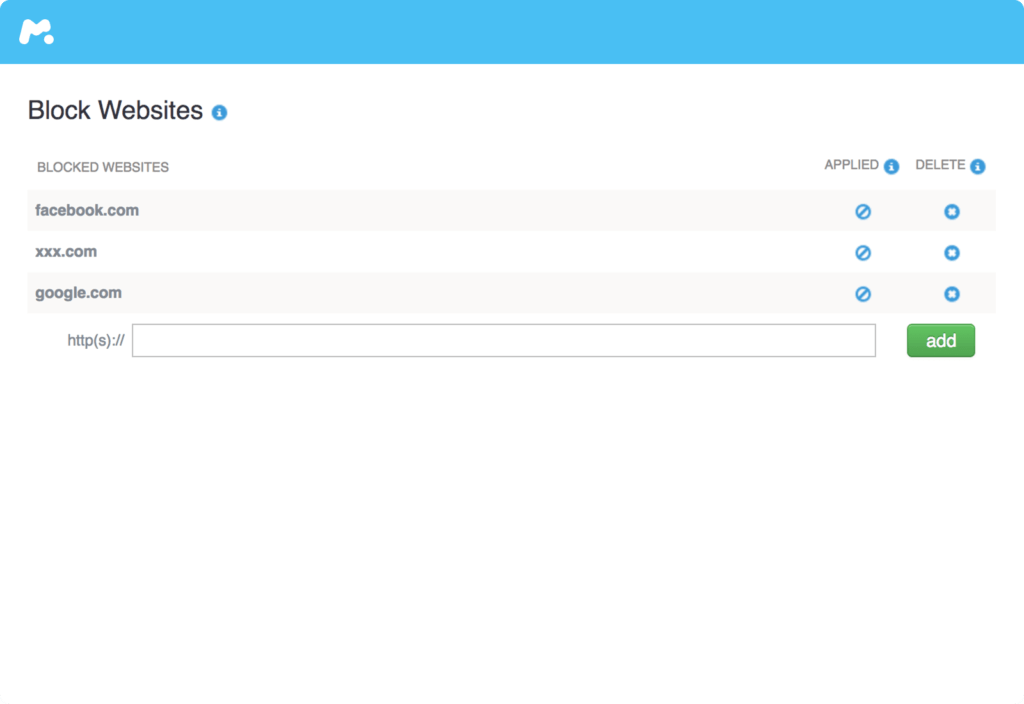
How to Block Websites on Android with mSpy
mSpy is designed to help you prevent access to questionable websites in your household. It allows you to restrict them from inappropriate content, with at least 18 materials on racism, drug use, violence, and many more. It comes with amazing features to make the process easy. If you are worried that your kids could be exposed to inappropriate content, this is the best tool to use.
It is cheap and easy to use. You will need to purchase mSpy, and then set up and install it before you start tracking and blocking. When you make a payment, you will receive a welcome email to usher you to the beginning of use. You can download and install it easily guided by the instructions before logging in and manipulating the control panel according to your preferences. mSpy will help you easily block websites and applications on Android. Besides, you can supervise calls, texts, instant messengers, GPS location as well as many other activities.
How to Block Websites on Android Chrome

Take time to learn how to block websites on Android Chrome. Ensure that you have administrator access to the device. First, sign in to the administrator account of the Android phone. And then you can get the help of the BlockSite app to block websites.
Step 1. Download and install the BlockSite app
Open Google Play and search for the “BlockSite” app to install on your Android device.
Step 2. Launch the BlockSite app to block websites
Launch the BlockSite app on your Android, and then tap “Go to settings” when prompted. You’ll need to enable the app or activate the app in the settings so that you can block the websites you don’t want to see.
Step 3. Add the blocked websites in BlockSite
After activating the BlockSite app, tap the green “+” icon in the BlockSite app on the bottom-righthand corner of your mobile screen. You can block any website or application by entering the name in the search bar.
Step 4. Confirm the blocked websites
After you enter, you will finish the website blocking when you tap the green checkmark on the top-righthand corner. In addition, you can edit or remove websites and apps from your blocked list at any time.
How to Block Websites on Android with ES File Explorer
If you have a rooted phone. By editing the host’s file, you can redirect sites and block websites effectively. To do this, you will need a file manager and text editor. The most popular one is to use the ES file explorer app. Here is how it works:
Step 1. Install ES File Explorer and launch it. Tap the menu button at the top left.
Step 2. Tap to open the menu and the tapped text in the pop-up.
Step 3. Tap the edit button in the top bar.
Step 4. As you edit the file and block sites, you want to redirect their DNS.
Step 5. Reboot the device.
How to Block Websites on Android with Trend Micro
In case the method is too complicated, simply install an anti-virus app like Trend Micro. Try this:
Step 1. Install the app and run it.
Step 2. Swipe to parental controls and set up an account. Create an account to view the blocked list in the app. Tap and add before adding the names of the websites.
Conclusion
In conclusion, blocking websites on an Android device is an effective way to create a safer browsing environment for both children and families. Whether your goal is to prevent access to inappropriate content, reduce online distractions, or protect against malicious websites, Android offers several practical solutions to meet different needs and preferences.
For parents who want more than basic website filtering, mSpy provides a more comprehensive parental control solution. In addition to blocking websites and restricting apps, it offers features such as screen time management, browsing history monitoring, location tracking, and activity reports. These tools help parents better understand how their children use their devices while encouraging safer and healthier online habits.
The most effective approach combines technology with regular communication. By using reliable parental control tools and discussing responsible internet use with your children, you can reduce online risks and help them develop the skills needed to navigate the digital world safely and confidently.
How useful was this post?
Click on a star to rate it!
Average rating / 5. Vote count: