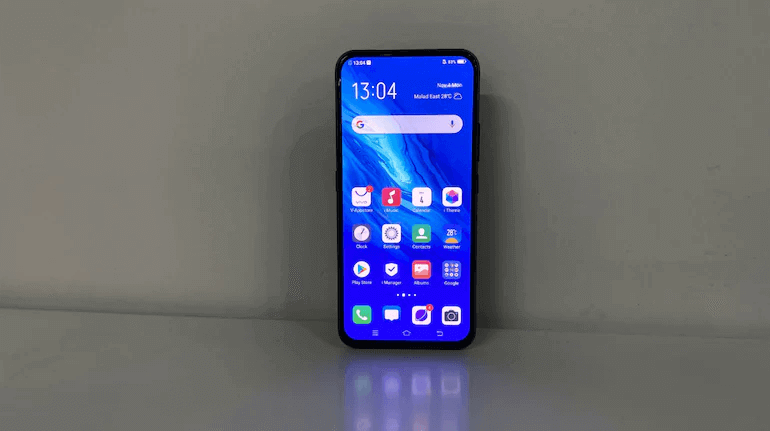
There are many situations where restricting access to apps on an Android device can be helpful. Parents may want to prevent children from opening social media, gaming, or messaging apps, while individuals may wish to protect private information stored in banking, photo, or work-related applications. Locking apps adds an extra layer of security and helps ensure that sensitive data remains protected.
As smartphones become an essential part of everyday life, managing app access has become increasingly important. Without restrictions, children may spend excessive time on entertainment apps, make unauthorized purchases, or access content that isn’t appropriate for their age. Likewise, if you share your device with family members or friends, app locks can help protect your privacy and prevent unauthorized access.
Fortunately, Android offers several ways to lock apps, ranging from built-in security features to third-party app lockers and comprehensive parental control solutions. The best method depends on your needs, whether you’re protecting personal information, improving productivity, or managing a child’s device.
In this guide, you’ll learn how to lock apps on Android using the most effective methods. We’ll cover simple setup steps, compare different approaches, and help you choose the solution that best fits your security and parental control requirements.
Part 1: How to Lock Apps on An Android Phone Remotely
To kick off, we will start with an app lock for Android that you need to install on the phone first to use. The internet has many of these, but most turn out to be cumbersome to use, have lots of ad pop-ups, or worse, need you to root your Android device before installation. So after intense research, we found the best Android Parental Control app – mSpy, which is compatible with all Android phones, such as Samsung, LG, Xiaomi, Redmi, Sony, Huawei, Oppo, Vivo, OnePlus, Motorola, etc.
mSpy is a fantastic parental control application that enables you to manage the amount of time your kid spends using apps on their phone. It lets you limit access to apps and control your child’s screen time remotely. Furthermore, you can track their movements with the location tracker and geo-fences feature in the software, and monitor text messages, web browsing, and social media activity without any hustle. It is effective and efficient. It has a simple user interface and hence doesn’t require any technical skills to use.
To lock apps on Android with mSpy, follow the steps below:
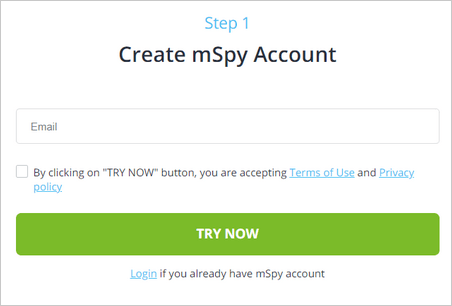
Step 1: Create your account
Create an account using the correct personal details.
Step 2: Settings in Kid’s phone
Now, log into the created mSpy account on the kid’s Android and specify the owner’s identity as Child. You must allow the app to have full access to the phone when prompted. Doing so is crucial for effective monitoring.

Step 3: Block apps on Android
Next, go to your mSpy dashboard. mSpy automatically connects the kid’s phone, and you can now block the apps you want to lock.

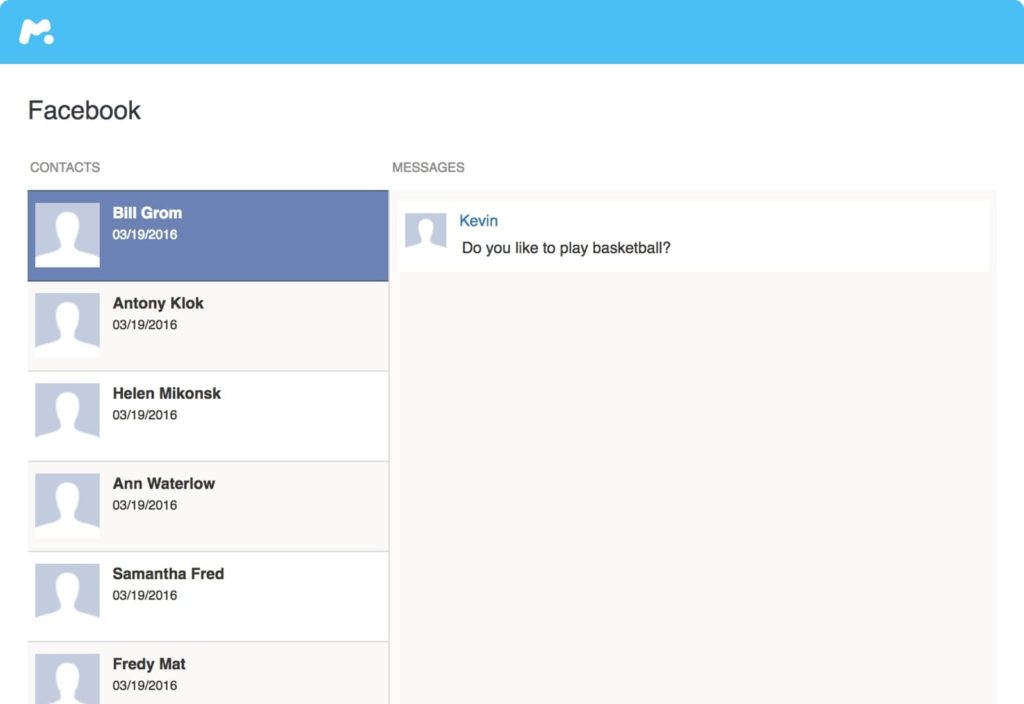
With mSpy, you are good to start tracking your kid’s phone. mSpy has a neat dashboard that facilitates smooth monitoring of your kid’s phone, including tracking the messages of Facebook, Instagram, LINE, WhatsApp, Snapchat, and more.
Part 2: How to Lock Apps on An Android Phone with Screen Pinning
It is a phone lock app on Android devices that closes the app in question in plain sight, and trying to shut it or reaching for the home screen initiates your lock screen security password key-in. The procedures for enabling screen pinning differ on Android 9.0 and 8.0/7.0 versions.
To activate screen pinning on Android 9.0 PIE:
Step 1: Go to Settings and select Security and Location. Then tap on Advanced > Screen Pinning.

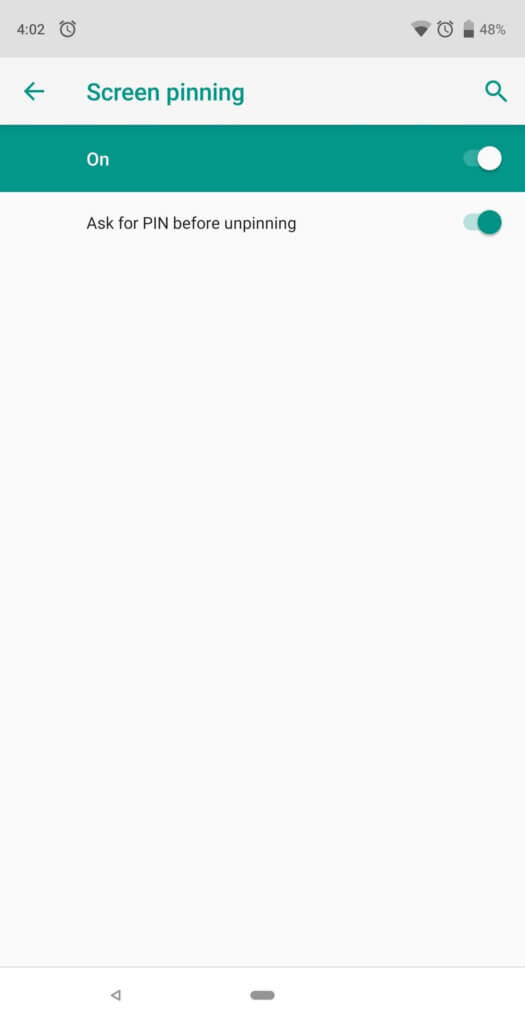
Tap on the toggle to turn on screen pinning.
Step 2: Ensure you allow increased security measures by tapping on the Ask for PIN before unpinning.
Step 3: Next, click on the Overview icon at the bottom of the screen then choose the application you would like to pin. Then tap on Pin > Got it.

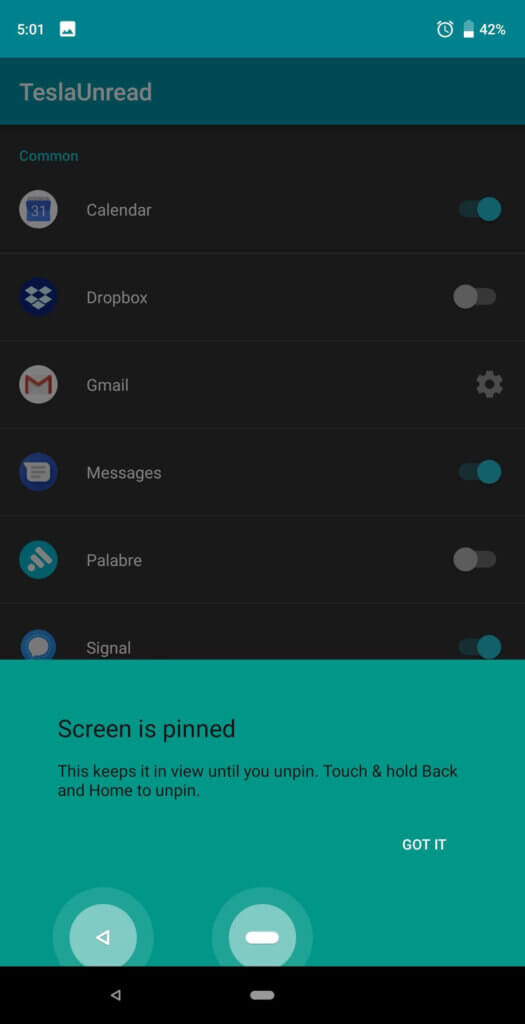
Step 4: To access the pinned app, you need to unpin it. To do so, tap and hold the Back and Overview icons at the same time. You then input your set security code, and the app will get unpinned.
For Android 8.0 OREO and 7.0 NOUGAT:
Step 1: Open the Settings app and tap on Lock Screen and Security. Select Other security settings > Pin windows.
Step 2: Enable screen pinning and click on the Ask for PIN before unpinning the toggle to activate it.
Step 3: Tap on the Overview tab and launch the app window you wish to lock to the front. Next, tap on the Pin icon in the bottom right corner of the screen then, click OK.
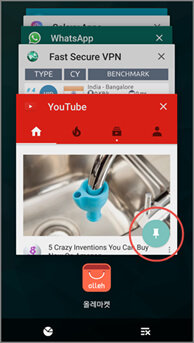
Step 4: Unpin the pinned app window by tapping and holding the Back and Overview icons. Then input your security passcode and access the app.
Part 3: How to Lock Apps on Android An Phone with a Guest Account
Don’t be alarmed about the name. A Guest account is like any other account, except it utilizes different instances of the app on your phone. It is an ideal app locker for Android users, especially when sharing your phone with someone else. As long as you have it activated, you can rest assured that your private apps and information remain confidential.
This feature is available on Android 9.0, 8.0, and 7.0, i.e., Android Pie, Oreo, and Nougat. Following is a guide on how to lock apps on Android Pie and Oreo:
Step 1: Go to Settings and select System. Then choose Advanced and tap Multiple Users.

Step 2: Next, select Guest to change the user account. Or, tap the gear icon on the very right to enable calls. To keep receiving calls when the Guest account gets activated, tap on the toggle beside Turn on phone calls text. Click OK in the pop-up.
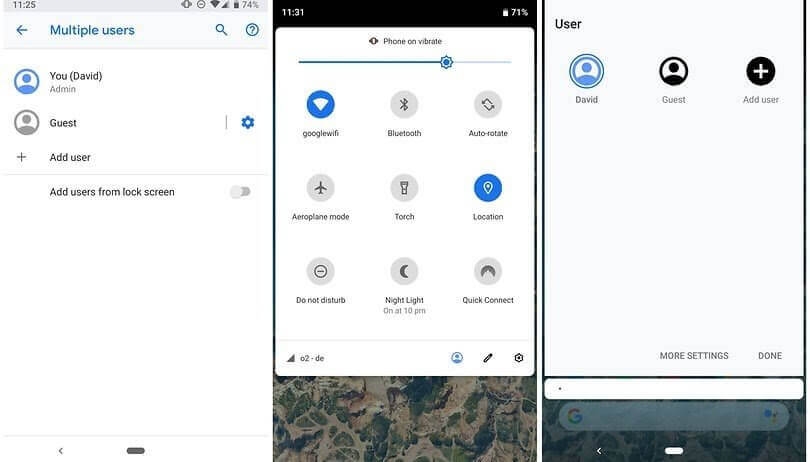
Step 3: Alternatively, you can switch to a Guest account by expanding your notification tab and clicking on the user icon in the bottom right section.
Step 4: Tap on Guest to change the user account.
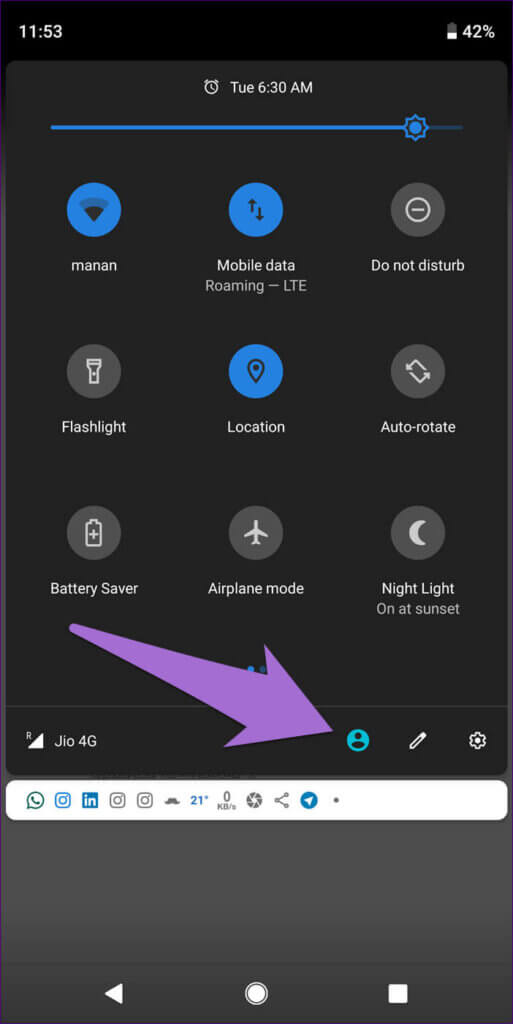
To enable the Guest account on Nougat:
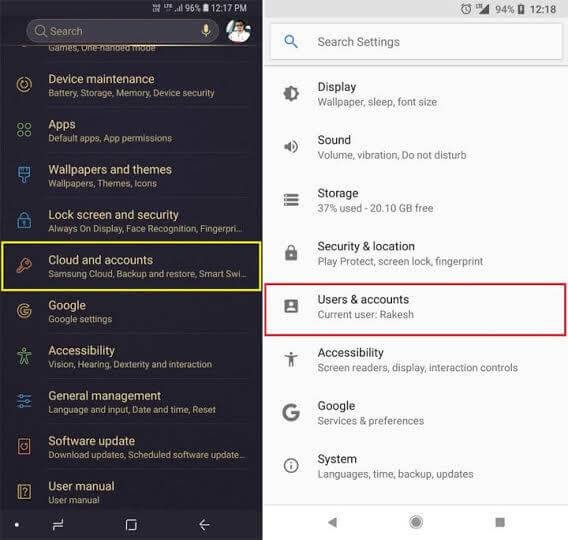
Step 1: Launch Settings, choose “Cloud and accounts” and tap on Users. Then click Guest.
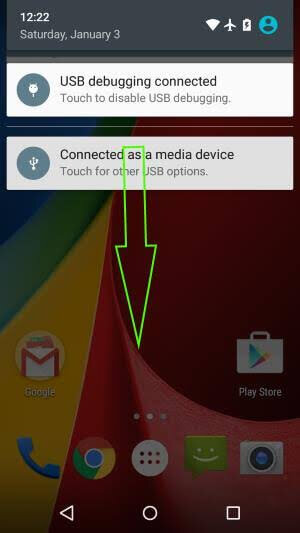
Step 2: To view your settings panel, swipe down and tap on the User icon at the top right corner of the interface.
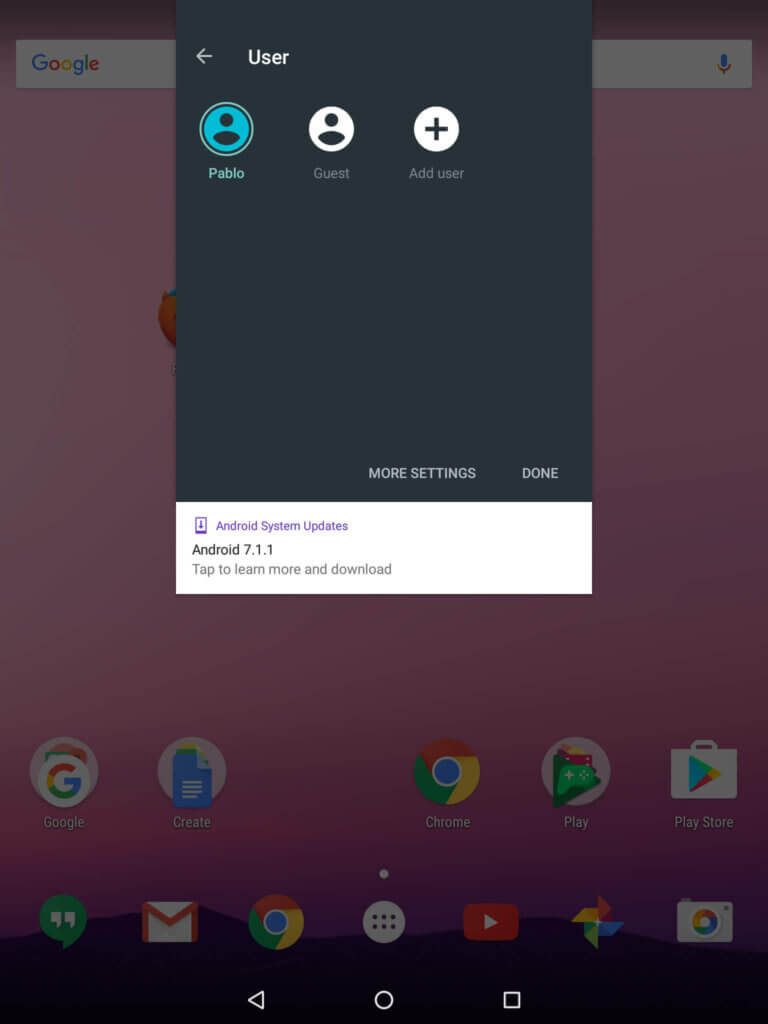
Step 3: Lastly, click Guest.
Part 4: How to Lock Apps on an Android Phone with Samsung’s Secure Folder
If you have a Samsung Galaxy S7/S7 Edge/S8/S8+/S9/9+, Galaxy S22/S20, Note 8, and the like, then you are familiar with this phone lock app for Android since they come with a pre-installed Secure Folder. In case it lacking and your Android is version 7.0 onwards, you can download it from Google Play or Galaxy Apps.
Secure Folder eliminates unauthorized access to your apps by blocking them with security measures of your choice. To use this app blocker:
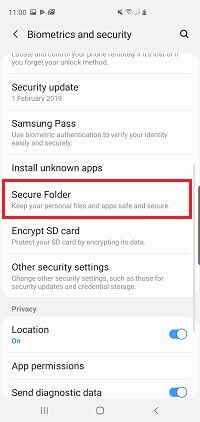
Step 1: Go to Settings and click on Lock Screen and Security. Then tap on Secure Folder.
Step 2: Next, click on Lock type > Select Lock Type (or a Biometric option, if available). Choose the option you desire e.g., Pattern, Pin, or Password, and proceed by keying in the passcode and confirming.

Step 3: Now, launch the Secure Folder from the app drawer and tap on Add Apps. Select the applications you want to lock and click on Add.

Step 4: When you are done adding apps to the Secure Folder, tap on Lock in the top left corner of this interface.
Step 5: You will get a notification that the Secure Folder is locked. Any attempt to access it triggers the lock type you selected in Step 2 above.
Step 6: To be granted access to the apps locked in the Secure Folder, input the passcode you created in Step 2 above. The app will be unlocked.

Conclusion
Whether you are exploring phone lock apps for Android, managing your child’s app usage, or need some privacy for your applications, all the above methods are fun and worth giving a try. However, before using any of the last three app locks for Android, make sure your device is running on Android 7.0 versions onwards. Also, use the right guide for specific Android versions to avoid frustration during the setup process.
Overall, if you are looking to keep an eye on phone activity on another phone, mSpy is the app to get.
How useful was this post?
Click on a star to rate it!
Average rating / 5. Vote count: