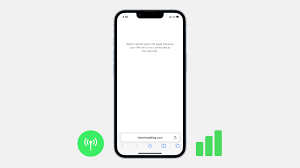
Recently, we’ve received many complaints that iPhone cellular data is not working on their devices after updating to iOS 18, which brings us much inconvenience in our daily lives. Today, in this article, we will walk you through the process of fixing the issue in no time. Read on and find them out.
Part 1: 3 methods to fix the cellular data not working issue
Method 1: Turn on cellular data on your device. Go to Settings > Cellular (or Mobile Data), then check if your cellular data is off. If it is, tap the switch to turn it on. Also, make sure that mobile data is enabled for individual apps too. You can check this by scrolling down and looking at the list of apps on this same screen.
Method 2: Reset network settings and restart your device.
As you may know, improper settings may cause this problem, so try restarting your iPhone to see if the cellular data can work normally. Simple steps are listed below:
- Go to Settings and tap General.
- Tap Reset.
- Tap Reset Network Settings.
- Put in your passcode to confirm.
- Go back to the Home screen.
- Press and hold the Power button and turn the device off.
- Wait for about 10 seconds, and then press the Power button to turn your iPhone back on.
Note: resetting your network settings will erase all of your saved WiFi passwords.
Method 3: Check cellular carrier updates. You need to go to Settings > tap General > then tap About. If there is an update there, just install it.
Part 2: Fix the iPhone cellular data not working issue without data loss
If your iPhone’s cellular data isn’t working due to system errors, failed updates, or unknown glitches, iOS System Recovery offers a quick and safe solution. It repairs the iOS system without deleting data and restores stable network connectivity in minutes. Here I’d like to recommend a convenient, reliable, and safe tool, that is, iOS System Recovery. It is a magical program that not only fixes your problem but also protects all your data.
Key Features:
- Fixes iPhone cellular data not working, “No Service,” and signal drop issues.
- Repairs system errors without data loss.
- Supports all iPhone models, including iPhone 17, iPhone 17 Air, iPhone 17 Pro, and iPhone 17 Pro Max.
- Fully compatible with iOS 18/iOS 26 and earlier versions.
- User-friendly interface — no technical skills required.
- Restores iOS stability and improves overall performance.
Step 1: Download and launch the software, and run it. Then select More Tools. After it, tap on iOS System Recovery. Get your device connected to your PC, and tap on Start.
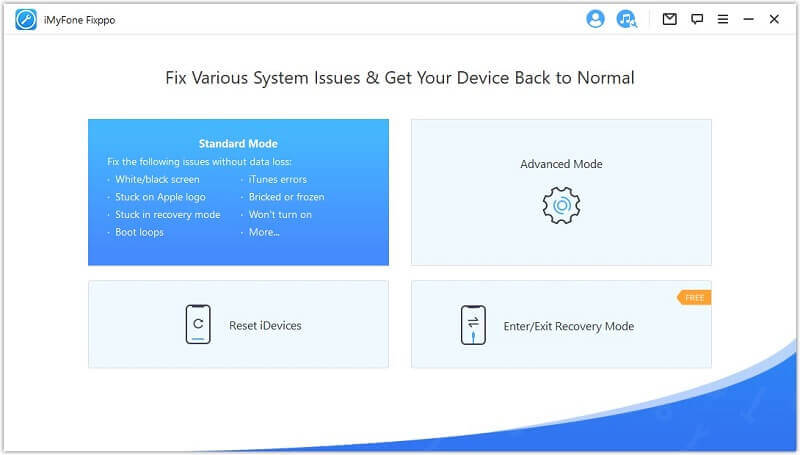
Step 2: Now you are required to download the latest firmware. Once done, the tool will recognize your iPhone and provide more details at once. You just need to click Confirm, and then the download will start.

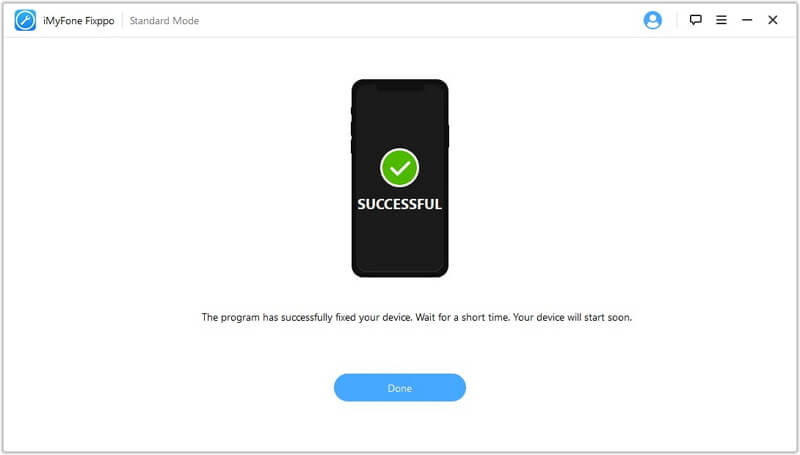
Step 3: Once the download is OK, the software will start to fix your iPhone. Please remember not to disconnect your device. A Few minutes later, your device will be restarted normally.
How useful was this post?
Click on a star to rate it!
Average rating / 5. Vote count: