
“Last night, my iPhone 13 Pro Max randomly appeared with a blank interface. I held down the power button and the volume down button simultaneously. After the screen went black, the Apple logo appeared. But after a few seconds, it went black again. This process continued repeatedly. It’s been this way. I think my phone is stuck in restart mode. My device’s one-year warranty has expired. However, I really need to repair my iOS device. I only have one phone and no spare phone. Can anyone help me fix my iPhone stuck in the boot loop? Thanks for any help and suggestions.”
Many Apple fans have complained about power-related issues. The most complained about BLoD status. Once this problem occurs, your iPhone will be in a restart loop. The device keeps restarting. In this article, we propose a solution to the problem of constant restart caused by non-hardware reasons.
Part 1: Force restart to repair iPhone boot loop
A hard restart will generally resolve most iOS system issues. When the iPhone device is abnormal, a forced restart is a preferred solution.
Step 1. Press and release the “Volume Up” button, then press and release the “Volume Down” button.
Step 2. The above operation is completed, immediately press and hold the “Power” button until the Apple logo appears.
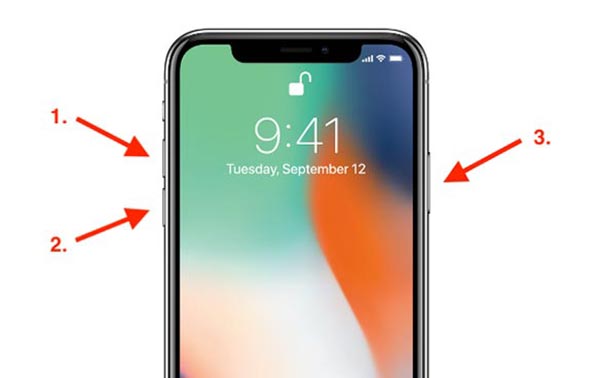
This method is used for iPhone 8 and iPhone X and above models. For other iPhone models, please refer here to perform the forced restart operation.
iPhone still does not reboot normally. And the following problems occur:
- iPhone stuck in recovery mode loop
- iPhone stuck on Apple logo loop
You can refer to the method in the corresponding article to solve it.
Part 2: The best method to fix the iPhone restart loop
Here we recommend iOS System Recovery. As the best tool to repair iPhones, it can more professionally repair iOS systems and software problems. You can even use this repair tool to extract data lost during the repair process.
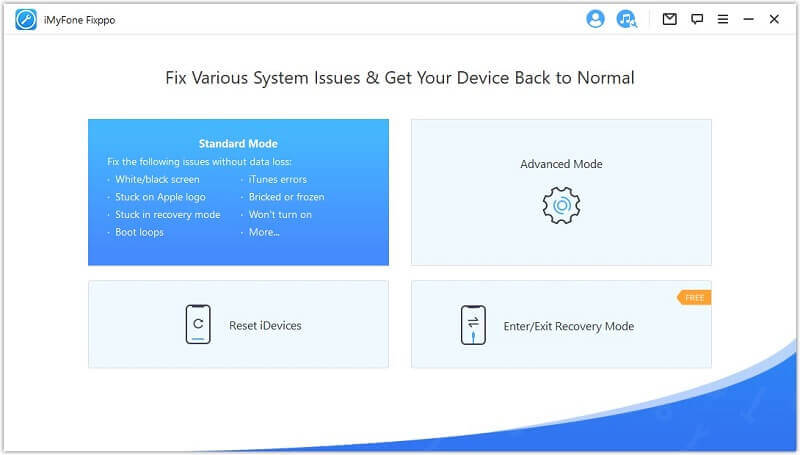
Step 1. Download and install the repair tool. Run the program and select “iOS System Recovery” from the three options.
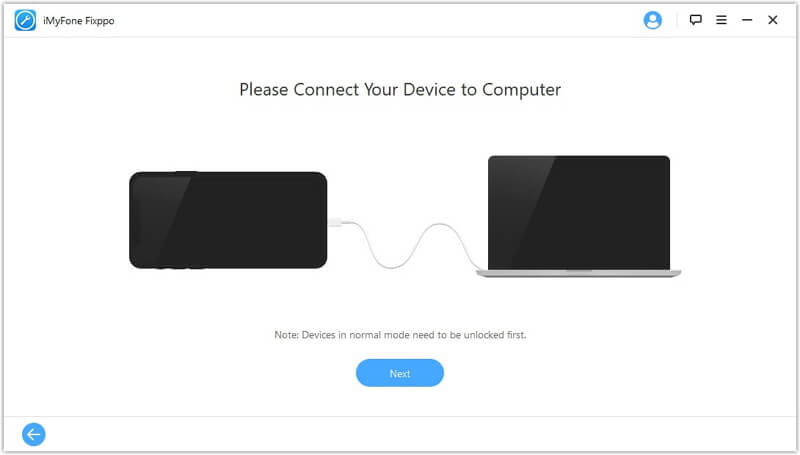
Step 2. Connect iPhone to the computer via USB cable and click the “Start” button.
Step 3. According to the iPhone device information displayed in the software interface, select the appropriate firmware. Then click “Download”.

Step 4. After the repair is completed, your iPhone will return to its normal state and end the boot loop.
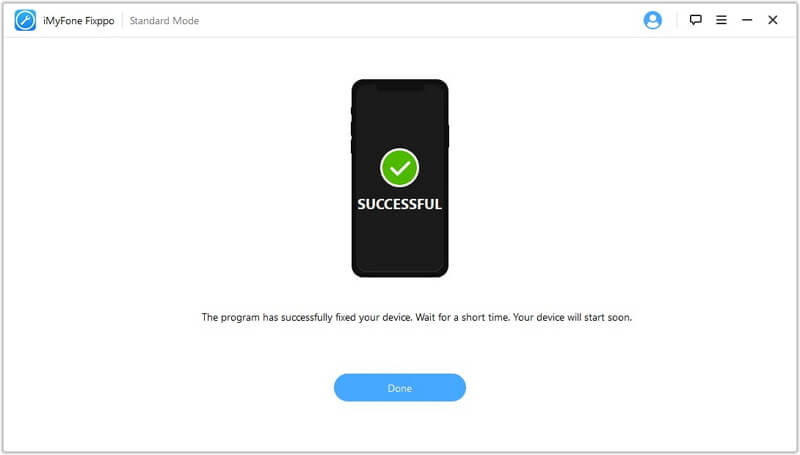
This method can fix most iOS issues. However, hardware problems cannot be repaired. Its important feature is that you can repair the iPhone without losing data.
Part 3: Fix the reboot loop with the backup data
If you usually back up your iPhone files, then you can get rid of the restart loop by restoring your iPhone. At the same time, this method may not work for devices that are already in the boot loop. And it will overwrite the original data on your iPhone and cause data loss. The steps are as follows:
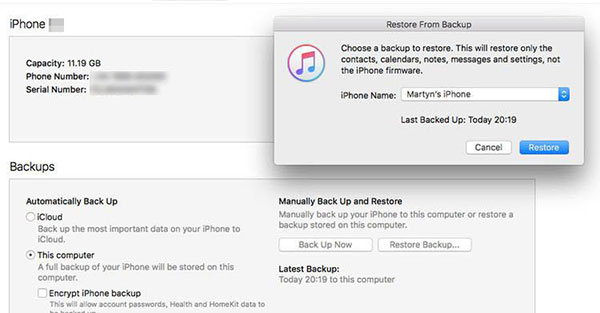
Step 1. Open iTunes on your computer and connect your iPhone to your computer. Then hit the device icon.
Step 2. Click “Restore Backup” and select the backup in the popup window. Then click “Restore” to restore.
How useful was this post?
Click on a star to rate it!
Average rating / 5. Vote count: