
Google Play Store is the primary source for downloading apps, games, and digital content on Android devices. As children increasingly use smartphones and tablets, managing what they can access through the Play Store becomes an important responsibility for parents. While the platform offers a wide range of useful and educational content, it also includes apps and media that may not be appropriate for younger users.
To address this, Google provides built-in parental control features that allow parents to filter content based on age ratings and restrict certain types of downloads. These controls help ensure that children only access suitable apps, games, movies, and books. Additionally, parents can manage in-app purchases and set limits on spending, preventing unexpected charges.
Setting up parental controls requires linking a child’s account, often through a Google account, and customizing restrictions according to their age and needs. Once configured, these settings provide an added layer of protection and peace of mind.
In this guide, we’ll walk you through how to set up parental controls on the Google Play Store step by step, helping you create a safer and more controlled digital environment for your child.
Part 1: How to Set up Parental Controls on the Google Play Store?
Setting up parental control on the Google Play Store can be very beneficial if you want to limit your child’s access to the ever-growing Internet information. For example, depending on your child’s maturity level, you can limit what material to download or buy from the Google Store. However, only purchases made through Google Play’s payment system will be covered by the buy approval settings.
Advice: Not all nations have parental controls for every form. You may need to revisit parental controls while traveling.
How to set up parental controls for family members who manage their accounts
Follow the procedures below to install parental controls in the Play Store for your Android device.
Note: You can set parental restrictions for each user if your device supports multiple users. However, you will need the PIN created by the person who set up the parental controls to remove or modify them.
Step 1: Select Family from the Google Play App
Launch the Google Play application and tap the profile icon in the upper-right corner.
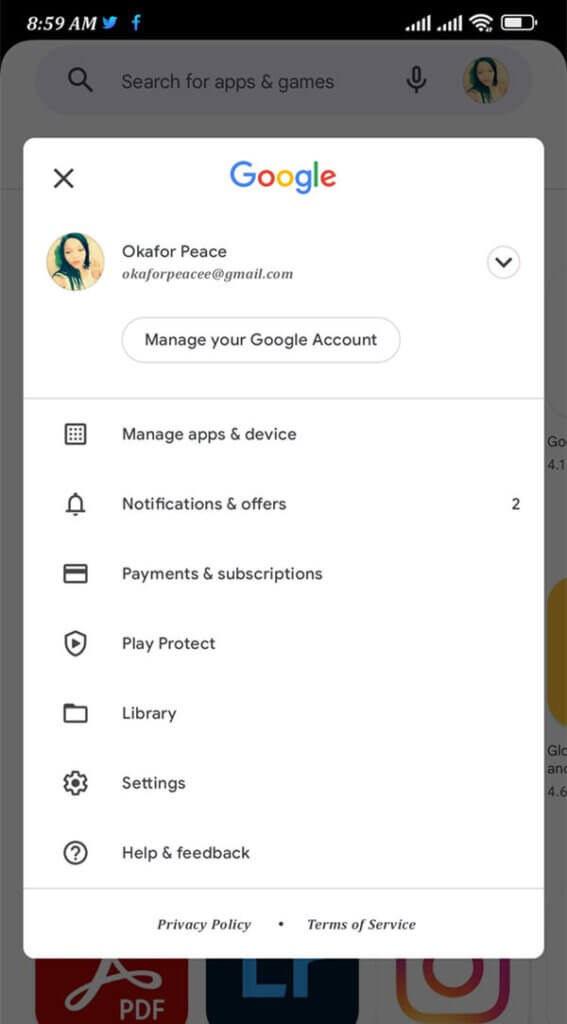
Select Parental controls from the Settings menu, then select Family.
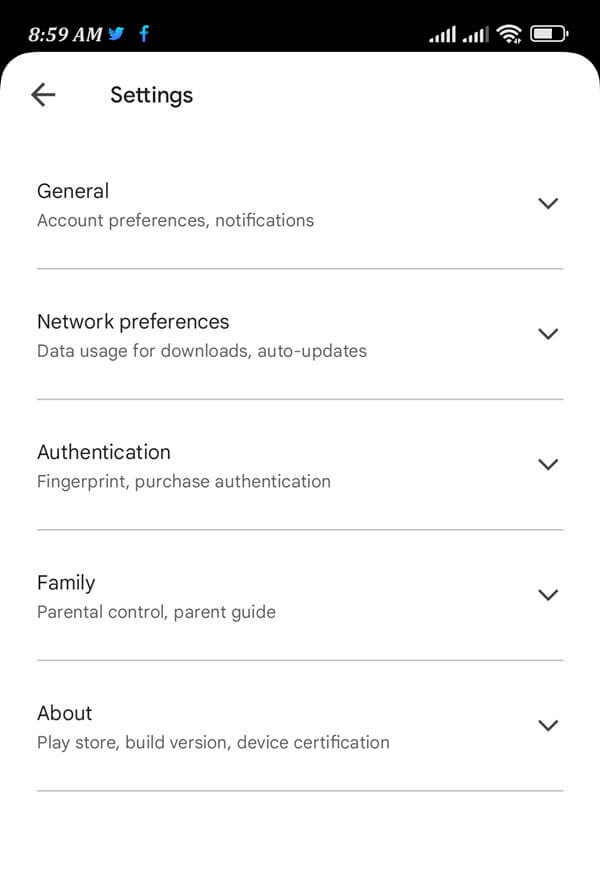
Step 2: Activate Parental Controls and Create a PIN
Set the parental controls to on.
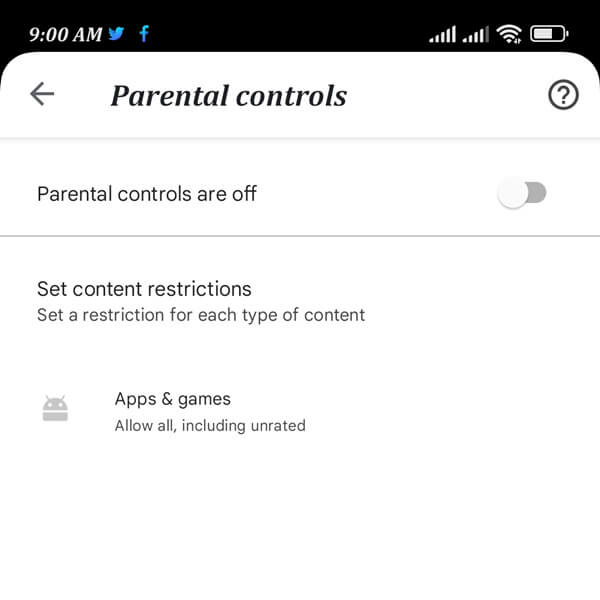
Create a PIN that your youngster doesn’t know to safeguard the parental restrictions.

Step 3: Filter Content Category
Choose the content category you wish to filter. Select a filtering or access restriction method.
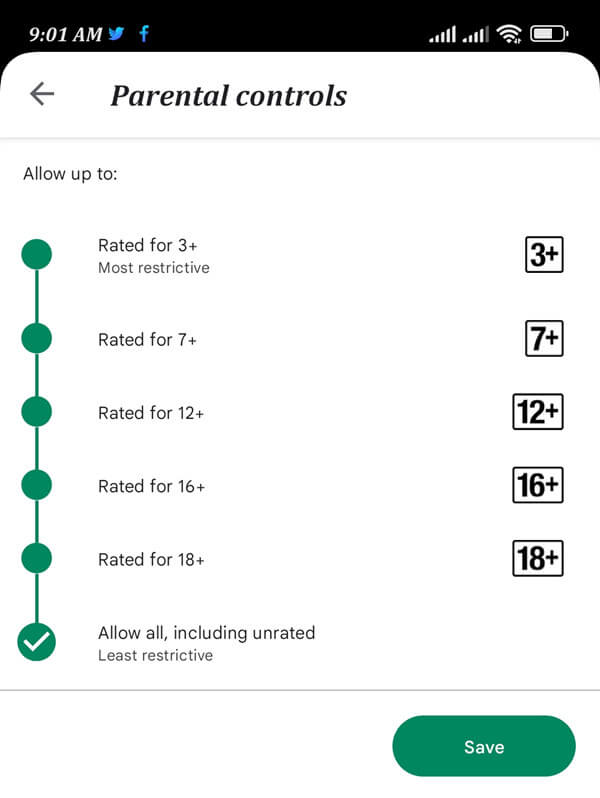
That’s it. You successfully set parental controls on the Google Play Store.
How to set up parental controls for family member accounts managed with Family Link
Parental controls function on Android devices when your kid has a Google Account logged in. The parental control settings for a kid must be set up or modified by a parent in the family group using their Google Account password.
You can also set up parental restrictions for your kid if you manage their Google Account via Family Link. Let us see how.
Step 1: Launch the Family Link mobile application and choose a kid.
Step 2: Toggle between Controls, Content Restrictions, and Google Play.
Step 3: To filter a specific category of material, tap it.
Step 4: Select a filtering or access restriction method.
By clicking on your child’s name, you can also manage their account on g.co/YourFamily.(If you want to use Family Link from your PCs or laptops to control your kids’ phones.
Part 2: How to Block the Google Play Store App?
mSpy is a parental control software that does not need you to root or jailbreak the device. It will help prevent your children from being exposed to harmful online material that can come in any form, like:
- Even seemingly harmless websites could include malicious material, share your browser history with other parties, like advertising, or steal your personal information.
- The internet is also rife with trolls, cyberbullying, and online predation. Nine out of 10 young people admit that there is such a thing as online harassment, and sixty percent of people who use social media have personal experience with bullying.
- You can track the messages on Instagram, WhatsApp, Facebook, Snapchat, LINE, Telegram, and other social media apps to keep your kid safe.
- In addition, victims of cyberbullying have a 1.9 times increased risk of taking their own lives. Kids, in contrast to adults, see the internet as a source of pleasure and a medium through which they may express themselves.
- They are unaware of its dangers and may provide too much information or become victims of thieves online.
However, if you have the mSpy kid control software, you won’t have to worry about keeping your kids safe.
Installing and registering a mSpy account on the parent’s device is the first step in starting with mSpy. You may also access the app in guest mode and look around before downloading it.
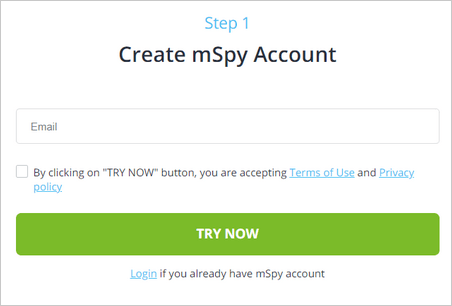
Step 1: Create an account
You need to create a mSpy account first.
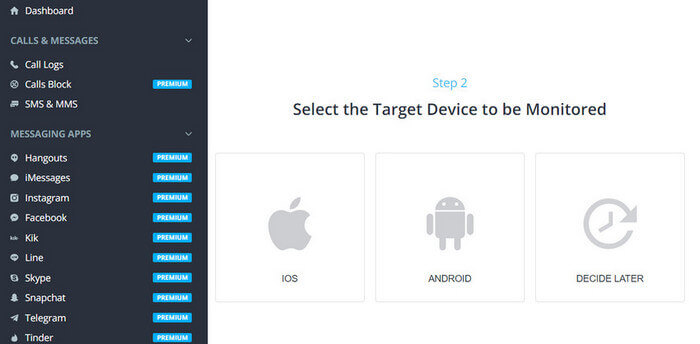
Step 2: Set up mSpy
Then you can download and set up the mSpy app on your kid’s iPhone or Android phone.
Step 3. Block the apps
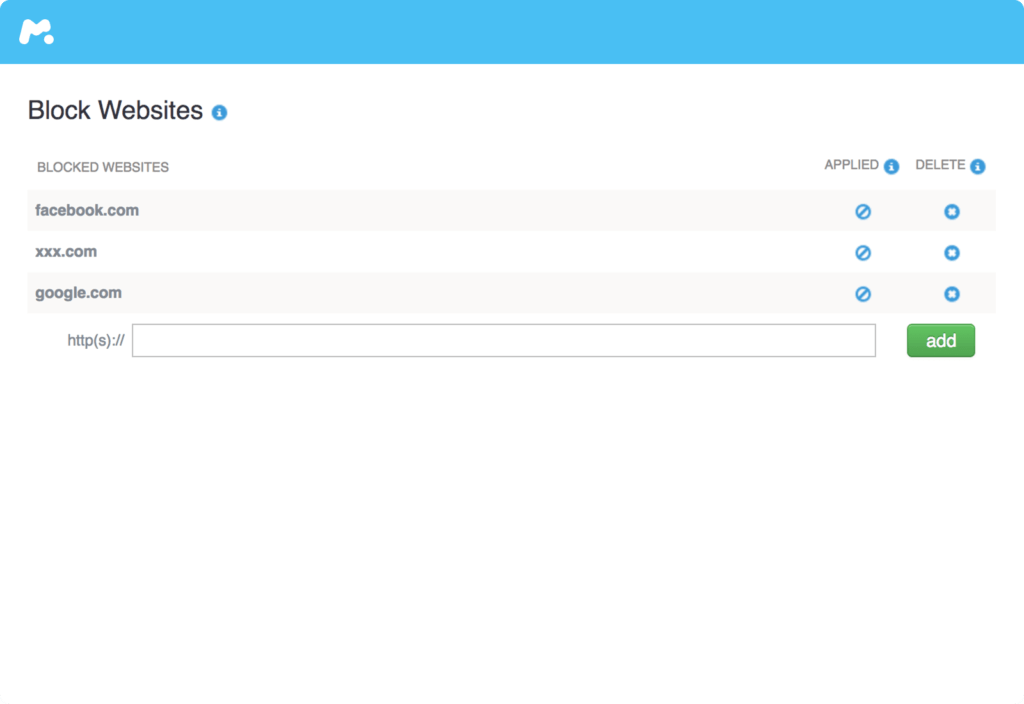
Now you need to log in to your account and select the app you want to block, such as the Google Play app. If you want to block the other apps to keep your kid safe, you can select them and click the “Block” button.

Besides, if you want to block websites that include porn photos and videos, you can also use mSpy to block them with ease.
Conclusion
Are you concerned as a parent about the safety of your children when they use their smartphones? You’re going to like this! The problem of avoiding parental controls on the Play Store and its unavailability in certain areas is resolved by the unique program, “mSpy Parental Control.”
mSpy parental control restricts access to objectionable software and material while giving you remote access to your child’s phone’s contents. By doing this, parents may give their kids their tablets or cell phones without worrying about them getting into trouble. They may use the app to keep themselves secure when playing games or searching the Google Play Store for new ones to download or buy.
How useful was this post?
Click on a star to rate it!
Average rating / 5. Vote count: