
Dark mode has become an increasingly popular feature on apps and devices. Its darker color scheme helps reduce eye strain in low-light environments. It also helps conserve battery life on mobile devices using OLED displays. With its global user base, adding a dark mode makes sense for Instagram.
Luckily, enabling Instagram’s dark mode is simple across iOS and Android devices. The steps are nearly identical on iPhone and Android phones. Beyond phones, Instagram’s website interface also allows you to enable dark mode.
The conventional user interface on Instagram includes a white background with dark text. Instead of this traditional approach, you can also have a dark mode on Instagram.
With additional rumors of benefits for the eyes, while using the screen in dark mode, many people are starting to prefer dark mode on their apps. On top of that, a less bright screen means less battery consumption.
The rising popularity of dark mode is also because many believe it helps reduce our eyes’ exposure to blue light. This, in turn, helps with our ability to get proper sleep and rest. With all these benefits, people are sure to switch to dark mode as often as possible.
As Instagram is one of the most widely used social media apps, it is appropriate to know how to put it in dark mode. By default, the light mode is the activated setting on Instagram. So to change Instagram to dark mode, you will have to turn the feature on.
How to Turn on Dark Mode on Instagram on Android Phone
There is a very easy way by which you can activate or turn on dark mode on your Instagram Android application. Follow the few steps below.
1. Log in to your Instagram account on your Android smartphone through the Instagram app.
2. Once you log in, go to your profile screen.
3. Now, in the top right corner, you will see a hamburger menu. Tap on it.
4. Next, go to Settings.

5. The setting page will now show up on the screen. Here, find the Theme option and tap on it.
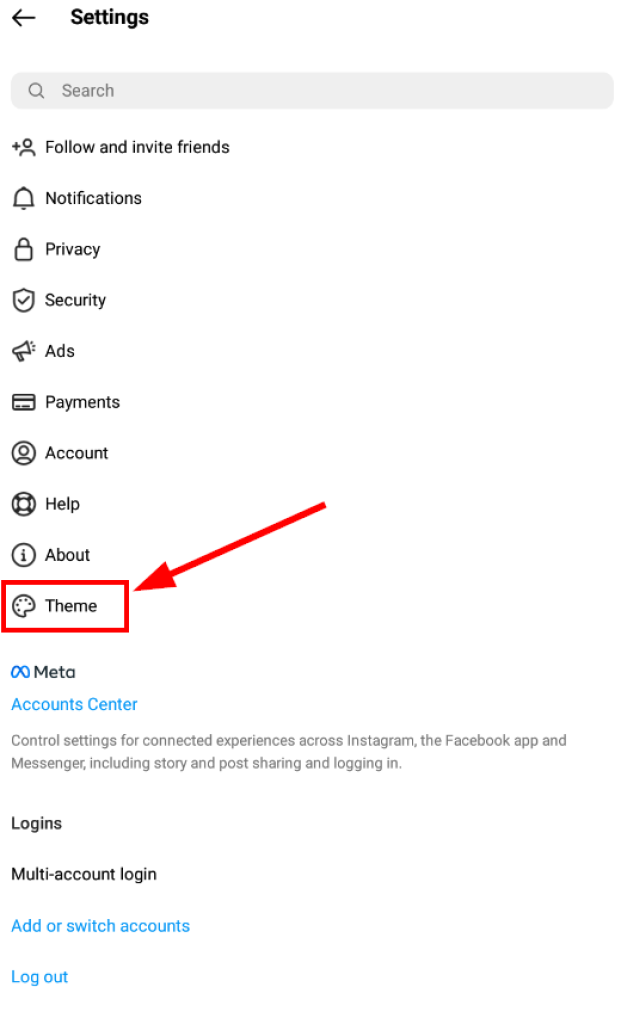
6. Now, check the Dark option. This will enable dark mode in your Instagram account.

Switching back to the light mode or turning off Instagram dark mode is just as easy.

Spy on Facebook, WhatsApp, Instagram, Snapchat, LINE, Telegram, Tinder and other social media apps without knowing; Track GPS location, text messages, contacts, call logs and more data easily! 100% safe!
Simply go to Settings and the Theme page, as demonstrated above. Then, check the Light mode option instead of checking the Dark mode.

If Dark mode is not enough relief for your strained eyes and you need to take a temporary break, then learn how to disable your Instagram account temporarily.
How to Turn on Dark Mode on Instagram on iOS (iPhone)
Unlike on Android, a different approach is followed to get dark mode on iPhone. Before you begin, ensure your iOS version is 13 or above.
1. First, go to your iOS device’s Settings instead of the Instagram app.
2. Next, scroll and search for the Display and Brightness option on the Settings page. Once you find it, tap on it.

3. Now, under the Appearance subsection, you will find an option for light and dark themes. Make sure that the Dark choice is enabled.

4. After doing that, launch the Instagram app on your iOS device. The application should now open with the dark mode enabled.
Note: Dark mode cannot be turned on and off in the Instagram app from the iOS store. For your iPhone or iPad, you need to change the settings from the device settings.
Dark mode doesn’t mean that you have gone incognito. People can still see your public Instagram profile. Follow this quick guide to learn how to make your Instagram private.
How to Turn on Instagram Dark Mode on PC
When we use our desktop PC to open Instagram, we generally do it through the web browser. Some famous web browsers include Chrome on a Windows PC and Safari on a Mac.
The following methods will work no matter the kind of laptop or computer you own or the web browser you use. However, there is no direct approach by which you can enjoy the dark mode feature on the Instagram web. So, you will have to use these quick and easy roundabout ways to enable dark mode in your Instagram account.
There are two ways by which you can activate dark mode in the web version (on the web browser of your computer).
Method 1: By Entering A Custom URL in The Web Browser
When you use the web version of Instagram on your web browser, you will normally go to the following address: www.instagram.com. This will launch the conventional light version of Instagram (white background with black text).
So to launch the web version in dark mode using a custom URL, follow the easy steps below.
1. Open your web browser (you can choose the web browser according to your preference: Safari, Chrome, or any other)
2. Enter the custom URL www.instagram.com/?theme=dark in the URL address bar of your browser.

3. Now, your Instagram will open in dark mode.
Note: There is no setting to activate dark mode through your settings page on the web version.
Method 2: Installing A Browser Extension
Another way to enable dark mode on your web browser is to install third-party extensions. It may not be the official way to do it, but it gets the job done nevertheless.
Go to the extension store for your web browser or search for dark-mode Instagram extensions through Google.
One example is the Night Mode for Instagram Google Chrome extension. It is lightweight, occupies only a few kilobytes of space, and is efficient.

Night Mode Google Chrome extension for Instagram
Conclusion
To wrap up, turning on dark mode on Instagram is more than just a visual preference—it meaningfully improves comfort, focus, and even your device’s efficiency. The darker interface reduces harsh screen brightness, especially in low-light environments, helping minimize eye strain and headaches that can result from prolonged scrolling. It can also support better sleep habits at night by limiting exposure to bright white backgrounds. On OLED and AMOLED displays, dark pixels require less power, which means dark mode can contribute to noticeable battery savings during everyday use.
The best part is that enabling dark mode on Instagram is simple and consistent across platforms. Whether you’re using iOS, Android, or browsing from a desktop, you can quickly access the settings either directly in Instagram or through your phone’s system appearance controls. Within seconds, the app transforms into a sleek, dark interface that feels modern and easier on the eyes. For users who regularly switch between work, entertainment, and messaging late at night, this small tweak can make Instagram significantly more comfortable to use at any hour.
Instagram’s adoption of dark mode also reflects the platform’s broader commitment to accessibility and personalization. Alongside controls for font size, notifications, and time-management reminders, dark mode gives users more control over how they experience the app. Whether you simply prefer the aesthetic or you’re trying to conserve battery during travel, it adapts to your lifestyle rather than forcing you into a single interface.
If you follow the steps discussed, you can start enjoying dark mode in just a few taps, regardless of your device. Once enabled, many users find it hard to switch back. It creates a calmer visual environment, enhances content viewing, and blends seamlessly with system-wide dark themes. Ultimately, dark mode is a small feature with big quality-of-life benefits, making Instagram easier, safer on the eyes, and more enjoyable to browse day or night.
How useful was this post?
Click on a star to rate it!
Average rating / 5. Vote count: