
![How to Unlock iPad Passcode without Restore [2022 Update]](https://www.getappsolution.com/images/unlock-ipad-without-restore.jpeg)
If you forgot the passcode on your iPad, or you’ve entered the wrong password so many times that the iPad is disabled, you will have no choice but to perform a restore either using iTunes or iCloud to unlock your iPad.
However, restoring the iPad would end up erasing all the existing data and settings. Is there a way to unlock the iPad passcode without restoring it? In this article, we will share several solutions to unlocking the iPad passcode without restoring.
Part 1: Is It Possible to Unlock iPad Passcode without Restoring?
Unfortunately, currently, there is no official solution to unlock the iPad passcode without restoring its system. Restoring using iTunes or iCloud is the only way to get into a locked/disabled iPad. Luckily, if you have synced your iPad with iTunes before, you still have a chance to back up your data before restoring your iPad.
Steps to Back Up a Locked iPad with iTunes:
- Open iTunes and update it to the newest version.
- Plug the locked iPad into the computer using your original Lightning cable.
- Once the locked iPad is detected by iTunes, tap on the “Back Up Now” button to make a backup.
![How to Unlock iPad Passcode without Restore [2021 Update]](https://www.getappsolution.com/images/20211022_617302bf16dad.webp)
Part 2: How to Unlock iPad Passcode without Restoring
Although there is no official way to unlock the iPad passcode without restoring it, that doesn’t mean it is impossible. Below are two methods you can follow to unlock an iPad without restoring it.
Use Siri to Unlock iPad Passcode without Restoring
With the help of Siri, there is a great possibility to unlock the iPad passcode without restoring its system. However, it is a loophole in iOS, and the weak point of Sifi is that it is only compatible with unlocking the passcode for iPad running on iOS 8.0 to 10.1. Follow the steps below:
Step 1. Activate Siri by long-pressing the Home button on your iPad.
Step 2. After activating Siri, ask the question “Hey Siri, what time is it? Siri will respond and show the clock app on the screen.
![How to Unlock iPad Passcode without Restore [2021 Update]](https://www.getappsolution.com/images/20211022_617302bf2aa0f.webp)
Step 3. On the main interface of the clock app, click the icon to open the world clock.
![How to Unlock iPad Passcode without Restore [2021 Update]](https://www.getappsolution.com/images/20211022_617302bf3dac8.webp)
Step 4. Tap the “+” icon to add more clocks, you can enter anything in the search bar and then select the option “Select All”.
![How to Unlock iPad Passcode without Restore [2021 Update]](https://www.getappsolution.com/images/20211022_617302bf4d409.webp)
Step 5. Click on “Share” and in the sharing options, tap on the “Message” icon to proceed.
![How to Unlock iPad Passcode without Restore [2021 Update]](https://www.getappsolution.com/images/20211022_617302bf5d645.webp)
![How to Unlock iPad Passcode without Restore [2021 Update]](https://www.getappsolution.com/images/20211022_617302bf6d512.webp)
Step 6. On the interface of the new message’s info, write anything in the “To” field and tap on “Return”. Select the highlighted text and tap on “Add”.
![How to Unlock iPad Passcode without Restore [2021 Update]](https://www.getappsolution.com/images/20211022_617302bf8325b.webp)
Step 7. Now select “Create New Contact” and click on the “add photo” icon, then tap “Choose Photo” to import photos from the album on your iPad.
![How to Unlock iPad Passcode without Restore [2021 Update]](https://www.getappsolution.com/images/20211022_617302bf97062.webp)
Step 8. After opening the photo app on the iPad, click on the Home button, and the iPad will be unlocked without restoring.
How to Unlock iPad Passcode without Restoring and Passcode
Since the method to unlock an iPad without a passcode using Siri only works on limited iOS devices, we are delighted to tell you that iPhone Unlocker is capable of unlocking an iPad/iPhone without restoring. And it is workable for all iPhone models and iOS versions, even the latest iPhone 17/17 Air/17 Pro (Max) and iOS 18/iPadOS 18.
Main Features of iPhone Passcode Unlocker:
- Better than iTunes: It is much simpler to use than iTunes. The passcode can be easily unlocked in a few clicks.
- Unlock All iPad Passcodes: You can instantly bypass the 4/6-digit passcode, Face ID, and Touch ID on a disabled or locked iPad.
- Remove Apple ID on iPad: No password is required to remove Apple ID from the iPad. The iPad will then be disconnected from the previous iCloud account.
How to Unlock iPad Passcode without Restoring Using
Step 1. Firstly, you have to install iPhone Unlocker and launch it on your computer. Once it is finished, click on “Unlock iOS Screen” on the welcome interface.

Step 2. After selecting the unlocking mode, connect the iPad to the computer, and it will detect the iPad.
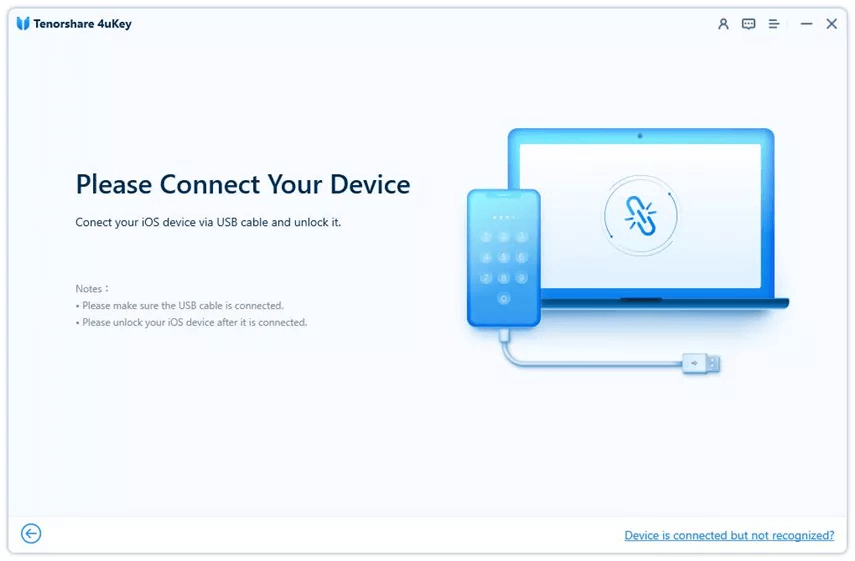
Step 3. The new window will pop up, requiring you to get the most appropriate firmware downloaded onto the iPad. You need to click on “Download” to proceed.
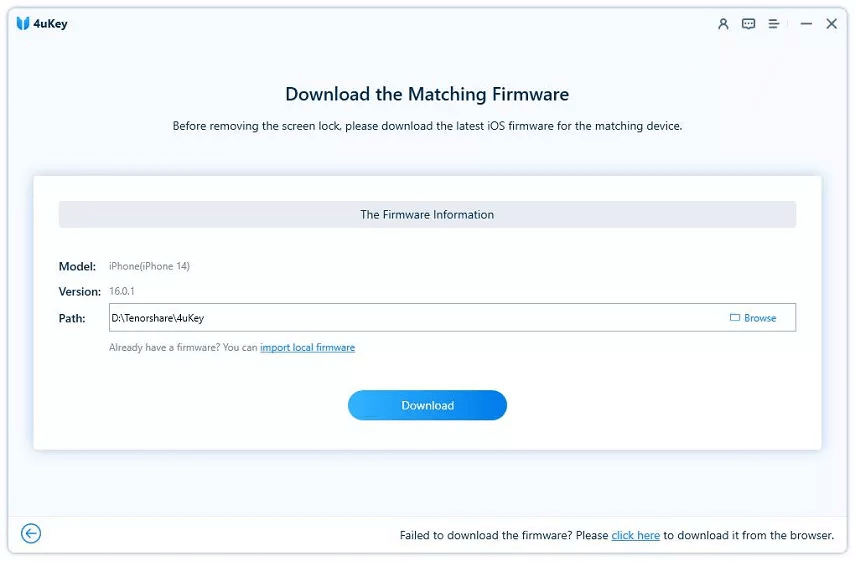
Step 4. You have to wait for a while until the firmware is downloaded. When it is completed, press the “Start Unlock” tab to unlock the iPad.

You will soon be notified when the unlock process is finished.
Part 3: How to Unlock iPad Passcode with Restore
The above 2 tips will help you unlock the iPad passcode without restoring it, while the 2 tips below will help you simply bypass the screen passcode by restoring it.
How to Unlock iPad Passcode with iTunes
Suppose that you fail to remember the iPad passcode and can’t access to iPad anymore, an effective way to get into the locked iPad is to restore the iPad with iTunes. Please note this method only works if you’ve synced the iPad with iTunes previously, or iTunes will not recognize the device, let alone restore the locked iPad.
- Open iTunes that you’ve synced with before and connect your locked iPad with a USB cable.
- Once your iPad has been detected, click on the device icon and go to the Summary tab.
- You can then click on “Restore iPad” to restore the iPad system. After the restore is finished, the passcode will be removed.
![How to Unlock iPad Passcode without Restore [2021 Update]](https://www.getappsolution.com/images/20211022_617302c040a56.webp)
How to Unlock iPad Passcode with iCloud
You can also consider using iCloud to unlock a disabled iPad without a passcode as long as Find My iPad is turned on.
- On the iCloud site, log in to your iCloud account using your Apple ID and password.
- Select “Find iPhone” from the main menu.
- After loading the page of Find My iPad, hit “All Devices” and choose the locked iPad.
- Choose “Erase iPad” from the main options and type the Apple ID passcode to confirm before erasing. The iPad will soon be remotely erased afterward.
![How to Unlock iPad Passcode without Restore [2021 Update]](https://www.getappsolution.com/images/20211022_617302c058ecf.webp)
Conclusion
For more methods to unlock the iPad passcode without restoring, you can ask for technical support from Apple or the device carrier. And we will appreciate it a lot if you could share this article with your friends or colleagues
How useful was this post?
Click on a star to rate it!
Average rating / 5. Vote count: