Many iOS users have reported frustrating issues where Instagram videos only play for a few seconds before endlessly buffering, showing a blinking camera icon, or refusing to load altogether. In some cases, the screen turns completely white while the audio continues playing in the background, creating a confusing and disruptive viewing experience. These problems can occur while watching Reels, Stories, or feed videos, making it difficult to enjoy content or engage with posts as intended.
This issue often becomes more noticeable after updating an iOS device. While iOS updates are designed to improve performance and security, they can sometimes introduce compatibility issues with third-party apps like Instagram. Changes in system permissions, background activity handling, video decoding, or network behavior may interfere with how Instagram loads and plays videos. As a result, users may experience playback failures even when their internet connection appears stable, and other apps are working normally.
Instagram video playback problems on iOS can also stem from outdated app versions, corrupted cache data, restricted cellular data settings, low storage space, or temporary glitches within the app itself. In some situations, the issue may not be limited to the Instagram app—users accessing Instagram through a mobile browser may encounter similar problems due to Safari settings or system-level limitations.
If you’re experiencing Instagram videos not playing properly on your iPhone or iPad, you’re not alone—and the good news is that these issues are usually fixable. By identifying the root cause and applying the right troubleshooting steps, you can restore smooth video playback and get back to watching and sharing content without interruption. In the sections below, we’ll walk you through proven solutions specifically designed for iOS users to help resolve Instagram video playback errors quickly and effectively.
Why won’t Instagram Videos Play on iOS?
The reason Instagram videos can’t play correctly could lie in the Instagram app or website, your phone, or the browser you use. The most common causes for Instagram videos not playing include the following:
- You’re using poor cellular data or a WiFi network connection to stream Instagram videos.
- There is damaged data in your Instagram app, or your Instagram app is out of date.
- Its publisher has deleted the Instagram video you want to play.
- You have turned on your power saving mode on your device.
Read more: How to Download Instagram Videos, Photos, IGTV And Reels
How to Fix Instagram Videos Not Playing on iPhone/iPad?
Check your Internet connection
Step 1. If you are using cellular data, switch to Wifi or vice versa.
Step 2. Check if your “cellular data use” is disabled on Instagram. If it is, Videos will be stopped from loading on Instagram. This is one of the reasons that Instagram videos only work on WiFi.
Check your router
Step 1. Reboot your router and check its cables.
Step 2. Restore your router to factory settings and remove it from the heat sources.

Spy on Facebook, WhatsApp, Instagram, Snapchat, LINE, Telegram, Tinder and other social media apps without knowing; Track GPS location, text messages, contacts, call logs and more data easily! 100% safe!
Step 3. Try another router and check its availability with other phones.
Reset the network and try again
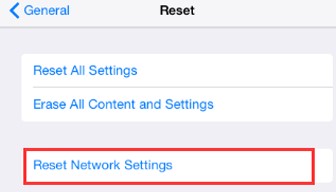
Step 1. Reset the network settings of your iPhone, and then restart your device.
Step 2. Reconnect to the network and try playing videos on Instagram again
iPhone: Settings > General > Reset > Reset Network Settings > enter passcode > confirm reset by pressing Reset Network Settings.
Uninstall and reinstall the Instagram app
This way, you can fix Instagram videos not playing issues caused by a problematic or archaic Instagram app.
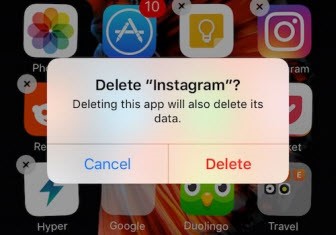
You have two ways to delete the Instagram app from your iPhone:
- Hold the Instagram app icon on your menu until it shakes, then tap X to delete it.
- Go to Settings > General > Usage/Storage & iCloud Usage > Manage Storage under the STORAGE section > locate and tap Instagram > Delete App.
- After that, go to the App Store to download and reinstall the Instagram app.
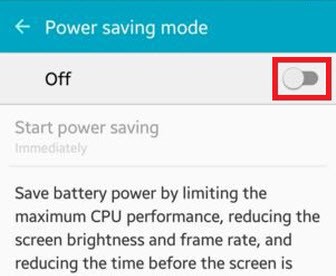
Disable power-saving mode
Power saving mode is useful when you need to save battery power, but your device’s performance (e.g., Instagram video playback) will be restricted. Hence, it would help if you disabled it to solve the Instagram videos won’t play problem.
- Open settings
- Tap battery
- Toggle low power mode off
Clear Instagram caches
Damaged data in Instagram will lead to an issue where Instagram videos are not playing. Luckily, we can remove them from Instagram by clearing the cache. To clear Instagram caches on your iPhone, you’d better uninstall it and download a copy later.
That’s it.
If you have any other questions on this topic, comment below, and we will answer ASAP.
Conclusion
By applying the methods discussed above, most Instagram video playback issues on iOS can be resolved effectively. These solutions address the most common causes of the problem, including app glitches, system conflicts after iOS updates, unstable network connections, and incorrect device settings. Updating or reinstalling Instagram helps eliminate bugs, while adjusting network and permission settings ensures the app can load videos properly.
When these steps are followed in order, users usually notice immediate improvements in video loading and playback stability. Instead of dealing with buffering, white screens, or frozen videos, Instagram returns to normal performance. Overall, using these proven methods provides a reliable and practical way to fix Instagram videos not playing on iOS and restore a smooth, uninterrupted viewing experience.
How useful was this post?
Click on a star to rate it!
Average rating / 5. Vote count: