Instagram is the world’s most popular photo-sharing social networking app, used by millions daily to share moments, express creativity, and stay connected with friends, family, and communities worldwide. What started as a simple platform for posting filtered photos has evolved into a powerful hub for personal expression, influencer marketing, and digital storytelling. Instagram has truly redefined the way people interact with visual content, offering features like Stories, Reels, DMs, and IG Live that keep users engaged around the clock.
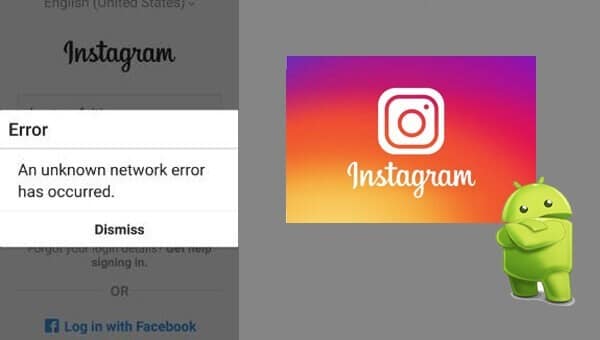
However, like any other app, Instagram isn’t immune to technical issues. One of the most frustrating problems users occasionally encounter is the “An Unknown Network Error Has Occurred” message. This error often appears without warning, usually when you’re trying to log in or refresh your feed, and can completely block access to your account. It’s vague, unhelpful, and leaves users wondering what went wrong—was it your internet connection, Instagram’s servers, or something else entirely? If you’ve recently faced this error, don’t worry—you’re not alone, and you’re definitely in the right place. In this guide, we’ll walk you through the potential causes of this issue and provide practical, step-by-step solutions to get Instagram working smoothly again.
Here, I will outline some methods to resolve the Instagram Error, “An Unknown Network Error Has Occurred”.
Don’t conclude that you are unable to fix this error just by trying one method. I recommend you try every method unless you don’t fix the issue. Also, different methods have worked for different people.
8 Ways to Fix Instagram Error “An Unknown Network Error Has Occurred.”
Method 1: Restart your device
Sometimes just restarting your device can solve the issue. So, why not try this once? To restart your device:
- Unlock the screen of the devices.
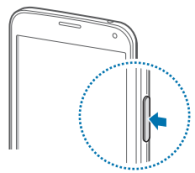
- Press and hold the “Power” button until a menu appears.
- Select “Power off“.
- Wait for the device to power off.
- Wait 10 seconds, then press and hold the “Power” button to power the device back ON.
- After that, try to connect with the app again. It may solve your error problem.
Method 2: Check your Internet Connection
Many times, it has been found that the error is caused due to a problem with WiFi. Make sure your internet connection is working properly and has good speed because many users have found that the Error is caused by to slow internet connection. You can also try switching your internet connection from WiFi to Mobile Data and vice-versa, try restarting the connection (you can also turn it OFF and then ON), which has worked for many users. If you are still getting the error, try another internet connection to open the app.
Note: If you are connected to Wi-Fi, then it is better to restart your router. Just switch off the router for 5 minutes and turn it ON again. It should fix the error. (If the issue is associated with Wifi /router)
Method 3: Clear the Cache and data of the app
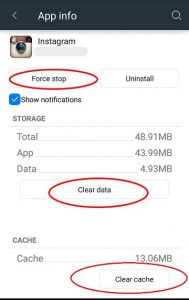
App cache and data may be corrupted so that we see errors. Clearing the cache and data may fix the error. So let’s try clearing the app cache and data. Just follow the steps to clear the cache and data.

Spy on Facebook, WhatsApp, Instagram, Snapchat, LINE, Telegram, Tinder and other social media apps without knowing; Track GPS location, text messages, contacts, call logs and more data easily! 100% safe!
- Go to Settings > Go to Application Settings (In some devices, Application Settings is named apps).
- Go to All the apps > Find the Instagram > Clear Cache and Data
- Once you have cleared everything, Next you need to force-stop the application.
Clearing the Cache and data should fix your issue. If you are still receiving the error, continue to the next step.
Method 4: Check your Date and Time
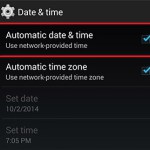
In many of the cases, it has been found that the error is caused by the wrong Date and Time. So, make sure you have the current date and time. Also, an additional tip is given below. You can follow that in case your Date and Time are correct.
- Go to Settings > Date & Time
- Enable Automatic Date and Time.
Now, check the app. If you are getting the same error, also try the steps below.
- Set the device to manual and set the year to 4 years in the future, then open the app.
- Once the app opens without an error
- Go back to time settings and reset to Automatic
Method 5: Disable VPN or Proxy Services
Using a VPN or proxy can interfere with Instagram’s ability to connect to its servers. Certain regions, IP addresses, or encrypted routes may trigger connection errors, resulting in the “Unknown Network Error.” Try turning off your VPN or proxy and reconnecting without rerouting your traffic. In many cases, disabling these tools immediately restores proper access.
Method 6: Check Instagram Server Status
Sometimes the issue isn’t on your end—Instagram’s servers may be experiencing outages or maintenance. When this happens, users worldwide report login failures and network errors. You can check platforms like Downdetector or Instagram’s official updates to confirm outages. If the servers are down, the best solution is simply to wait until Instagram resolves the problem.
Method 7: Update the app
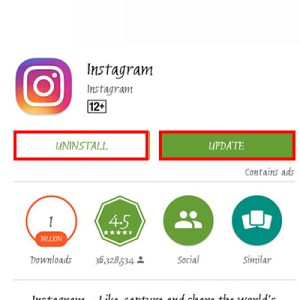
Many times, the error and many other issues related to the app are fixed in the new/updated version of the app. So, if the update is available, you should go for it. Many of the users have fixed their issues just by updating their apps.
If there is no update available, then you can uninstall and then reinstall the app. It should fix your Error.
So, these are some of the methods to fix the Instagram Error “An Unknown Network Error Has Occurred”. Hopefully, you have solved the error. Let us know which method worked for you.
Method 8: Reset Network Settings
If your device’s network configuration becomes corrupted, it can block apps from connecting properly. Resetting your network settings restores all Wi-Fi, mobile data, and Bluetooth settings to default. This step often fixes stubborn connection problems after other methods fail. Once reset, reconnect to your Wi-Fi or data network and try opening Instagram again.
Conclusion
Fixing the “An Unknown Network Error Has Occurred” issue on Instagram is essential for restoring a smooth and uninterrupted social media experience. This error often stems from temporary glitches, unstable connections, misconfigured settings, or external factors like server outages. By taking a systematic approach—such as restarting your device, disabling VPN services, checking Instagram’s server status, and resetting your network settings—you can quickly narrow down the cause and restore normal app functionality. These solutions not only address the immediate problem but also help strengthen your device’s overall network performance, reducing the chances of similar errors occurring in the future.
Staying proactive with app updates, maintaining stable connections, and avoiding third-party network tools can further ensure that Instagram runs efficiently. While the error can be frustrating, it is usually easy to fix with the right steps. Once resolved, you can get back to browsing your feed, posting content, chatting with friends, and enjoying all the features that make Instagram one of the most popular platforms worldwide.
How useful was this post?
Click on a star to rate it!
Average rating / 5. Vote count: