
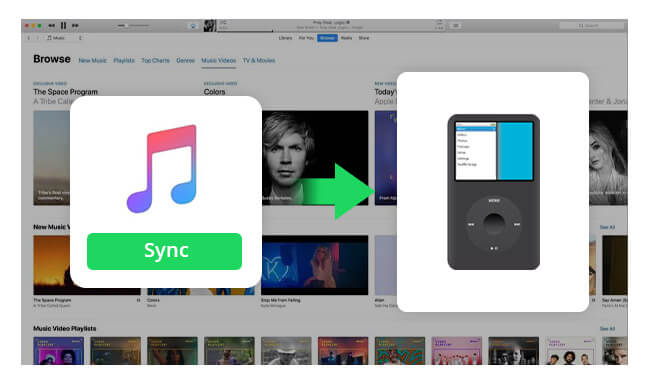
When Apple launched the iPod, it was a hit. The iPod was a piece of hardware with a simplistic view outside but very sophisticated hardware inside. The iPod (or iPod Classic) had a special way of transferring songs from a computer, called Sync Apple Music to iPod Classic.
Users of traditional PCs were initially lost as they had to get used to this sync feature. Also, newer file extensions were introduced by Apple along the way, instead of the MP3 format that the masses were accustomed to. Read the rest of the article to learn more about the iPod Classic and how to transfer files from it.
Part 1. What is “Apple Music Songs Cannot Be Copied to an iPod”?
Apple has dropped backward compatibility with the iPod classic. Because of this, and with the simpler nature of the classic’s hardware, syncing with Apple’s newer platforms may have issues. When you try to sync an iPod classic in Apple Music or iTunes, you may be shown the message “Apple Music songs cannot be copied to an iPod.”
Apple Music songs cannot be copied to an iPod is a scenario in which the DRM feature of a song is being felt. DRM stands for Digital Rights Management. Apple has incorporated DRM into its media players and songs to prevent illegal music distribution or piracy.
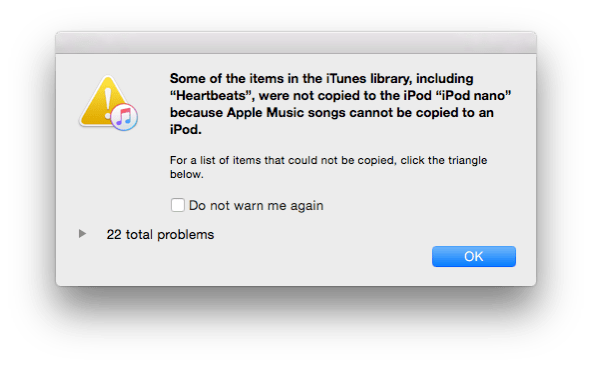
As DRM needs some form of tech to make it work, Apple has invented FairPlay. FairPlay is a technology wherein encrypted user keys, such as the password scheme used in our Wi-Fi when connecting to it, are appended to the tracks of the song files. These keys are first compared to the registered device when playing the song. This then serves as a passcode. Songs that do not match this passcode will not be played on the device. Hence, the DRM takes effect. Unfortunately, due to the simple hardware of the classic, it has not kept up with this update. Hence, Apple has decided to drop backward compatibility of Apple Music with the iPod classic. That’s why you are going to have problems syncing Apple Music to an iPod Classic.
The DRM scheme is also incorporated in media file transfers. Apple has incorporated its file extensions into its media. The M4A and M4P file extensions are popular and stand for unprotected and protected MPEG-4 audio files. The protected M4P files will generally give the scenario of Apple Music songs cannot be copied to an iPod. They do not even show any menu item for them to be copied to your iPod.
Part 2. How to Sync Apple Music Playlist to iPod Classic?
Since Apple Music Playlists will have issues, especially if they come from the cloud and are not available offline, it is best to look for a better solution to sync Apple Music to an iPod Classic. As it is almost impossible for the hardware of the classic to catch up with Apple’s newest DRM technology, a software freeware tool should do the trick.
Please see the steps below:
Step 1. Install the Apple Music Converter.
Step 2. Open the program, then go to the Library Tab. This is synced with your Apple Music or iTunes Library/Playlists. Choose the songs that you want to be converted.

Step 3. You can choose the output directory and output format of your converted files by choosing Output Settings below.

Step 4. Hit the Convert button below to start converting.
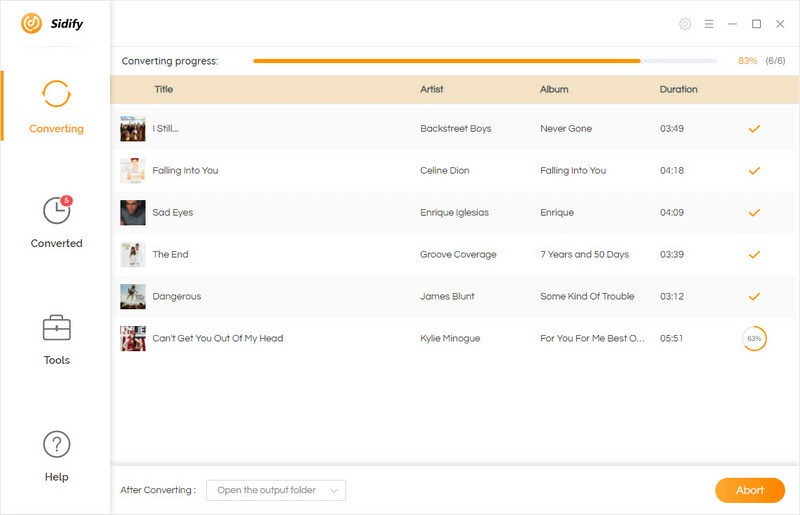
Step 5. When finished, go to the Finished Tab and click View Output File to go to the output directory.
Step 6. Drag the files you want to sync with your iPod classic into Apple Music’s or iTunes’ music Library or Playlist. You can now sync your iPod classic with your Apple Music Playlist with these converted song files.
Syncing Music:
- If your automatic sync feature isn’t enabled, then you have to start the sync yourself. In Apple Music, choose your device and press sync settings. This will open a Finder window, which is ready for sync.
- Choose settings in General and Music, then click Sync music into your iPod. Press Apply to continue the process.
- If you are working with iTunes, go to the left-hand Devices section and choose your device.
- On the upper section, switch to device mode by clicking the iPod icon, along with choosing Music as a category. This will bring you to some device settings, including sync settings.
- Choose the settings for Music, then click Sync Music and press Done.
Conclusion
Syncing Apple Music to an iPod Classic is a process that involves a special operation since Apple has already dropped backward compatibility with the Classic. Since we’re left with no tools, Apple Music Converter is the right choice for this.
To compensate for the hardware shortcomings and DRM support of the classic, we use Apple Music Converter through a software approach. By file conversion and DRM removal, all your Apple Music Playlists and Music Files can be indirectly synced with the iPod Classic. The user simply needs to know some basic file operations to accomplish this. Drag and drop or file import operations will suffice to complete the process of syncing Apple Music to the iPod Classic.
Apple Music Converter is a freeware conversion and DRM removal tool that will help you with all those hard-to-operate functions that cannot be done with traditional Apple software. This allows for a complete solution for your Apple Music collection. You may also be able to convert not only music files but also audiobooks and podcasts. By incorporating smart software, all restrictions of your purchased Apple Music files can be removed. You don’t need to search for Illegal music and MP3s anymore on the web just to sync Apple Music to an iPod Classic. By using Apple Music Converter, you will be able to store your purchased Apple Music content to your iPod Classic.
How useful was this post?
Click on a star to rate it!
Average rating / 5. Vote count:

![Apple Music Review: Is it Worth the Money? [2021 Guide]](https://www.getappsolution.com/images/apple-music-review-390x220.jpeg)

