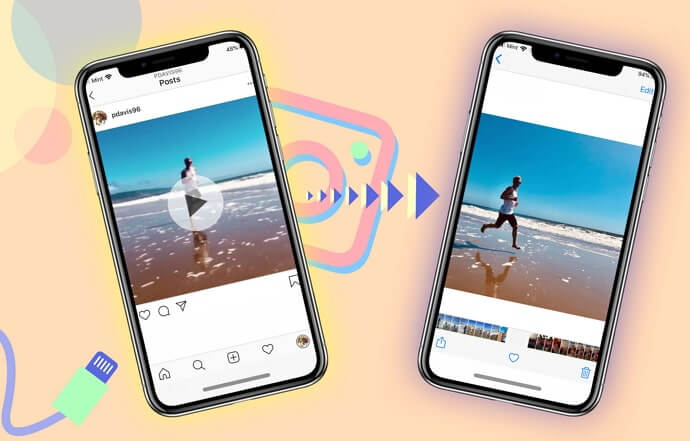
Instagram has become one of the most video-driven social platforms in the world. From short Reels and Stories to long-form videos and live streams, video content now sits at the core of how users consume and share information on Instagram. Whether you’re casually scrolling your feed, watching Reels for entertainment, or publishing videos as a creator or brand, smooth video playback is essential to the overall experience.
For content creators, videos are more than just posts—they’re a primary way to reach new audiences, drive engagement, and grow followers. Brands rely on video to promote products, influencers use it to tell stories, and everyday users share moments through Stories and short clips. When Instagram videos fail to play, buffer endlessly, or show a black screen, it disrupts both viewing and publishing, often leading to frustration and missed opportunities.
Video playback issues on Instagram can happen for many reasons. Poor network connections, app bugs, outdated software, device limitations, or incorrect settings can all prevent videos from loading properly. In some cases, the issue may appear while watching others’ videos; in others, your own uploaded videos may not play or process correctly. Understanding how Instagram handles video content—and what can go wrong behind the scenes—is key to solving the problem efficiently.
In this guide, we’ll explore the common causes behind Instagram videos not playing and explain practical solutions for both Android and iOS users. Whether you’re a regular viewer or an active video creator, knowing how to fix these issues will help you get back to enjoying and sharing video content without interruptions.
How to Fix Videos Not Playing on Instagram
Update your Instagram app
First, make sure that you are using the latest version of the app. If you are not sure whether your Instagram is updated or not, you can simply check this from the App Store if you have an iPhone. Or if you have an Android, you can do this from Google Play.
So first go there and check if your Instagram is updated; if not, then simply get the latest version of it on your device.
So one reason that you may not be able to play a video on Instagram is that you are using an outdated version. In many cases, updating the app will fix the problem.
To update your Instagram, follow the steps below.
- Get your phone and go to Google Play, or if you have an iPhone, then go to the App Store.
- In the search bar, type in Instagram and tap search.
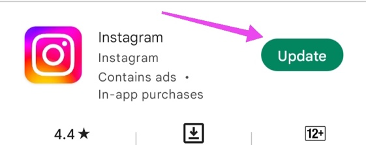
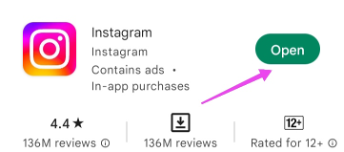
- Then a new window will pop up. If your Instagram is updated, you will see the “Open” button. If your app is outdated, you will see the “Update” button.
Check your Internet Connectivity
Many times, a problem like this is caused by poor internet connectivity. Make sure you have a stable and strong connection. So, how to make sure of that? Well, I’ll walk you through the steps and show you how to do it.
- On your device, open an internet browser. It doesn’t matter what browser. Any browser will do the job. Mine is Google Chrome.
- In the search bar, type speed test.
- Go ahead and tap on the first website.
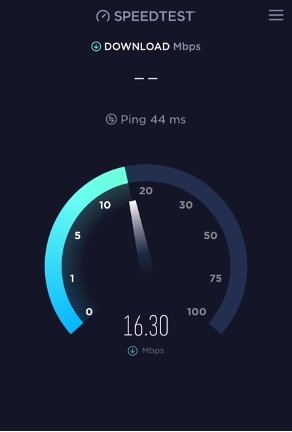
- A window will pop up, like what you see in the photo below.
- Simply tap on GO.
If your speed is faster than 5 Mbps, then it means there is nothing wrong with your Internet connectivity. Mine is around 16.30 Mbps, so it is fast enough to play a video on Instagram without any problem.

Spy on Facebook, WhatsApp, Instagram, Snapchat, LINE, Telegram, Tinder and other social media apps without knowing; Track GPS location, text messages, contacts, call logs and more data easily! 100% safe!
If yours is lower than 5 Mbps, then it means your speed is not fast enough. So you should switch it to a Wi-Fi connection. Or if you are already using a Wi-Fi connection, then you may want to switch it to a mobile data connection.
Check the Instagram Server
There are times when the Instagram server is down, and as a result, a problem like what you’re having now may occur. So it’s important to check if the Instagram server is down or not.
To do this, follow the steps below.
- On your internet browser, type in, Is Instagram down?
- Then tap on the first website.
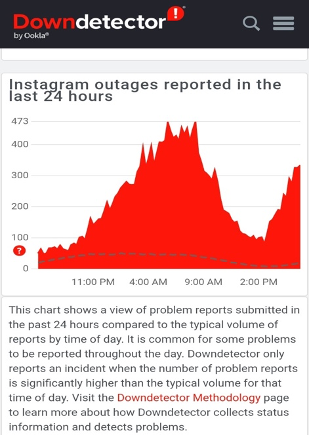
- Here you will see the reports for the last 24 hours.
- If you scroll a little further down, you will see many comments related to the Instagram server issues for the past 24 hours that people have dropped there.
- You will also see a chart. The chart is a good indication and shows us if the Instagram server is down or not. However, it only works based on the received reports from users.
- In the photo that I took, you can see that the server is not down.
Clear Instagram Cache and Data
Clearing data and cache is always a good solution. So if you can’t play a video on Instagram, you can simply clear the cache and data related to Instagram and see if it fixes your problem. The stash of your Instagram data may have become full, and clearing that will simply fix your problem.
I’ll walk you through some simple steps, and by following them, you can clear your Instagram cache and data.
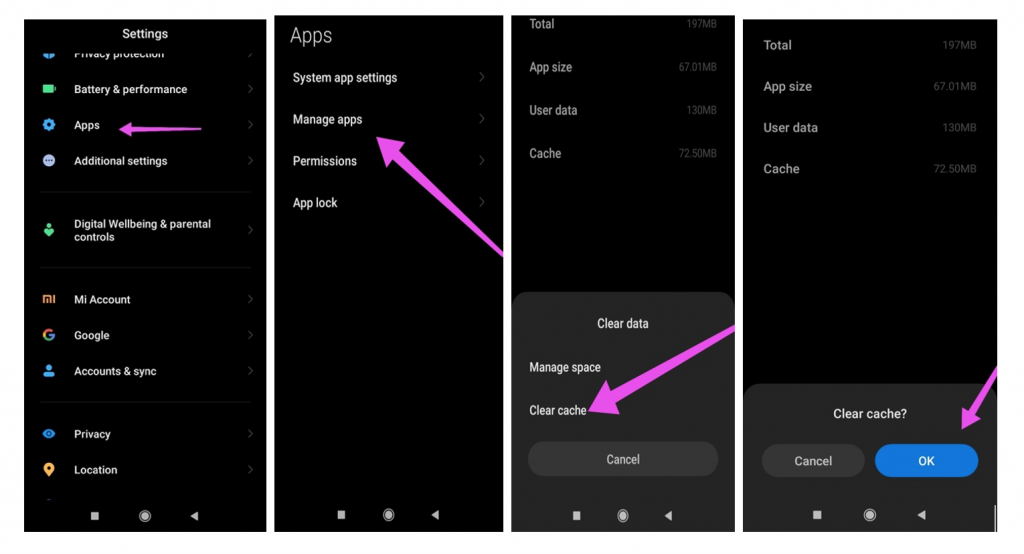
- Get your phone and go to Settings.
- Scroll down to where it says Apps.
- Now tap on Manage Apps. Keep in mind that these options may be a little different on various Android devices.
- Find Instagram and tap on it.
- Now go to storage, tap on Clear cache, and then tap ok.
- Do the same for Clear data.
- If your device is an iPhone, then instead of Clear data, you’ll see Offload App.
- So go ahead and offload the app.
- Then, after you’ve done that, in the same window, your device will ask you to reinstall the App.
- By doing this, both the data and the cache will be deleted from your iPhone. So the process is just a little different; however, the goal is the same.
Turn Data Saver off
Your problem should be solved by now; however, if you are still having this problem, check and see if the data saver is off or on. Because, based on Instagram, when the data saver is on, videos will not load in advance. You may be wondering why this feature should exist and what it does.
The only thing that this feature does is help you use less data; that’s all. And when you turn it on, videos might not play correctly.
So let’s see how to turn it off. It’s so simple, follow the steps below.
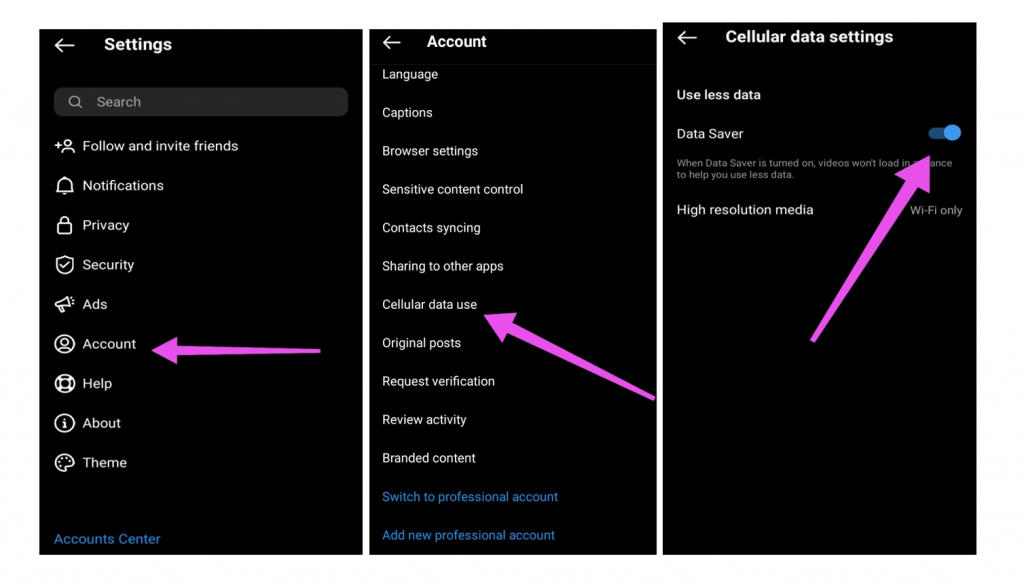
- Open your Instagram. At the bottom right-hand corner, go to your profile.
- On the top right-hand corner, tap on the three-dot icon.
- Then go to Settings.
- Now go to Account.
- Scroll down to where it says Cellular data use.
- Now go ahead and toggle off the blue icon that you see in the photo.
Disable Battery Saver
The battery saver on your phone can restrict an app’s ability to work at full capacity. As a result, you may encounter issues while playing videos or loading other content on Instagram. Hence, it’s best to disable it by following the steps below.
Android
To turn off the battery saver on Android, head to the Settings menu and tap on Battery. Turn off the Battery Saver option.
iPhone
To turn off the battery saver on the iPhone, launch the Settings app. Go to the Battery section and toggle off the switch next to Low Power Mode.
Tip: How to Download Videos from Instagram in One Click
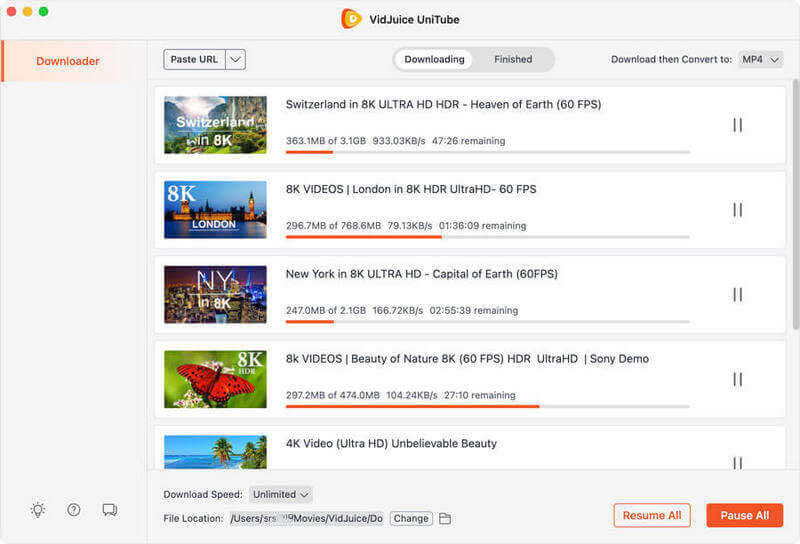
Online Video Downloader is an all-in-one video downloader to download videos from Instagram, YouTube, Facebook, Twitter, and more sites. If the videos are still not playing on Instagram, you can also download them or convert the Instagram videos to MP4 for offline watching.
Conclusion
In this article, I’ve provided some tested methods that you can try and hopefully fix your problem. When Instagram videos stop playing, it can affect both content consumption and content creation. Since video is central to Instagram’s experience, playback issues often stem from network instability, outdated apps, device settings, or temporary platform glitches. By understanding how Instagram handles video content and applying the right fixes, most problems can be resolved quickly. Once addressed, videos load smoothly again, allowing users to watch, upload, and engage with content without interruptions—ensuring a better overall Instagram experience.
I hope you have found this article useful, and if you are still having issues with playing videos on Instagram, feel free to leave a comment in the comments section below.
How useful was this post?
Click on a star to rate it!
Average rating / 5. Vote count: