
Technology has made it incredibly easy to manage and access information directly from our smartphones. Devices like the iPhone store detailed records of daily activity, including call logs, which can be useful for keeping track of communication history. However, there are times when users find it difficult to retrieve this information—especially if call records have been deleted or are no longer visible on the device.
Understanding how call history works on iPhone is the first step toward accessing it effectively. In many cases, call logs can still be recovered through synced services like iCloud or viewed directly on the device if they haven’t been overwritten. These built-in systems are designed to store and manage data securely while allowing users to access their information when needed.
Some users also look for alternative methods to view call history beyond the device itself, particularly when trying to recover lost data or monitor usage patterns. In this guide, we’ll walk through different ways to view iPhone call history, including built-in options and other commonly discussed approaches, along with their limitations and considerations.
Part 1: How to View My Call History?
Viewing Call history from iPhone
First of all, let’s start with the easiest part of how to see call history on iPhone, which is immediately viewing recent call logs directly from your device’s call history.
- First, make sure your iPhone is on the home screen; if not, quickly press the home button to show the default home screen.
- Look to the bottom part of your screen and locate the “phone” icon amongst the four applications located there (it’s usually the first app to the left) and click the icon.
- A new screen will pop up, which might sometimes be your contact list and favorite contacts. At the bottom of the screen (usually the second option from the left), you should see a time-like icon with the title “recent” written under it. Tap the icon to view
- You should see your recent iPhone call history, including FaceTime calls, arranged in descending order. At the top of the page are two tabs, namely ‘All’ and ‘Missed’, to display.
- You can also tap the blue circle icon with the letter “I” in it, which appears in front of each of the call logs to get more information and further actions about the call, such as time of call, returning the call, adding a number to contacts, or even blocking the number.
Viewing Call history from iCloud
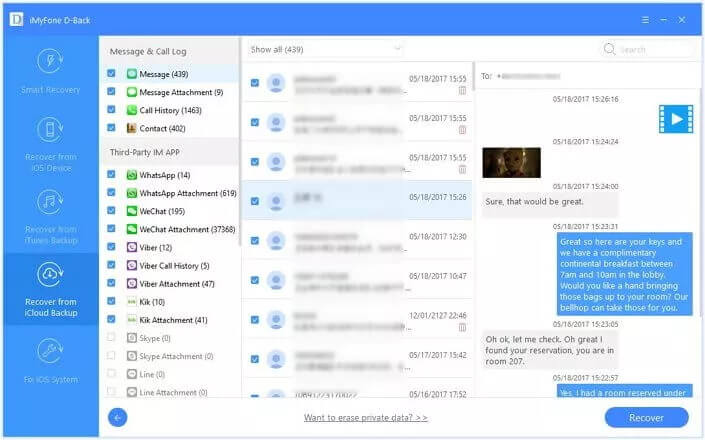
Apple, just like most smartphone companies, synchronizes to iCloud, which can back up an iPhone call history for months with information like phone number, time of call, call duration, missed and ignored calls, etc. iCloud backup can’t be easily accessed without a third-party application. Several such apps can easily retrieve your call history from iCloud with iPhone Data Recovery.
- Download iPhone Data Recovery on your Windows or Mac and install it.
- Plug your iPhone into your computer via a USB cable and then Launch iPhone Data Recovery.
- On the iPhone Data Recovery homepage, click on “Recover from iCloud” and then the blue arrow at the bottom.
- Log in to your iCloud account
- After logging in, select the desired recent calls and then click download after checking the “Call History” only option, and click OK to download.
- Click the next button and check “only list deleted,” then select the call log to be restored.
Internet Service Provider
Another means of how to see call history on iPhone would be directly from your Internet Service Provider or Cellular Carriers. Cellular carriers, such as AT&T or Verizon, can give you access to your call history from their website accounts linked to your phone. You can get up to 18 months or more of call logs from most cellular carriers on their website.
Part 2: How to view others’ iPhone device call logs?

Apart from trying to investigate or being a snoop, there are several reasons to want to view others’ call logs. Before thinking about third-party apps, you can view the iPhone call history of two different iPhones if they both share the same Apple ID.
How to view others’ iPhone device call logs with mSpy?

Spying is no doubt a clear violation of someone else’s privacy, but it might be sometimes unavoidable and probably necessary. mSpy is one of the top third-party apps that can be used to view iPhone call history and track another iPhone.
It has a straightforward and user-friendly interface, both on the web and phone applications. The mSpy app has several features other than just spying and viewing iPhone call history, some of its other features include:
- To explore and discover the internet history on the target iPhone
- It can also be used to check the location of the phone being spied on via GPS tracking
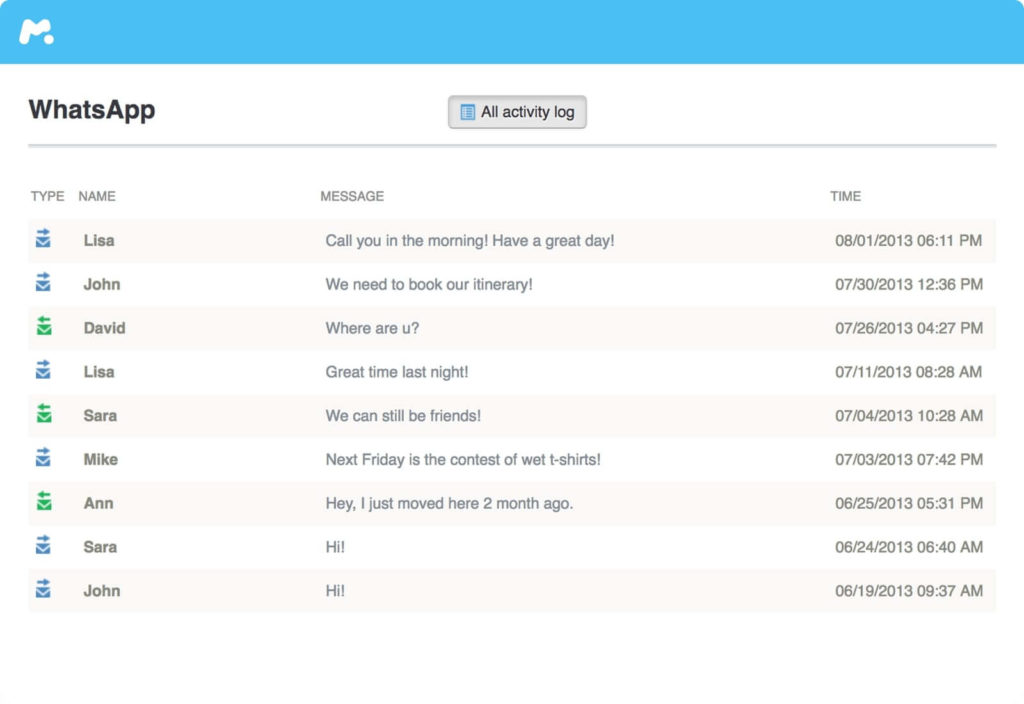
- It can also track WhatsApp messages and emails, whether they were sent, received, or even deleted
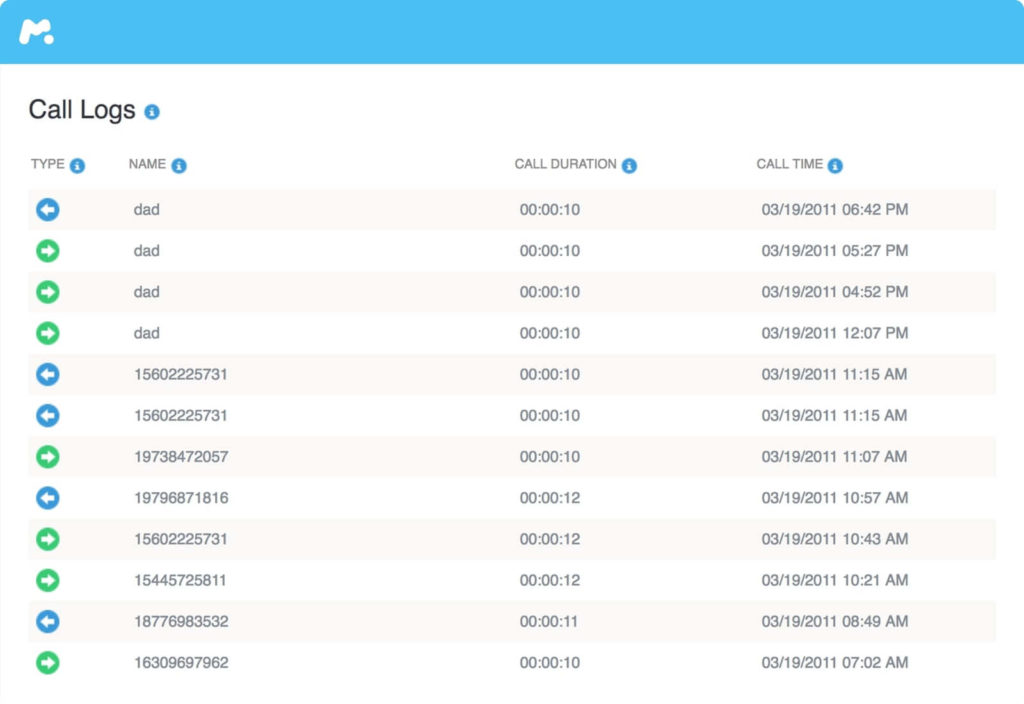
- It can not only view iPhone call history, but it can also access all contact lists with detailed information on each contact.
Several other apps give details on how to see call history on iPhone, but mSpy stands out among them because
- It does not require the installation of any app on the target phone for it to work effectively.
- It also does not require you to jailbreak either of the phones, which could void your warranty. Just install the app (for Android) or log in (for iPhone) to the website, and you are good to go.
Below are the steps to follow to spy or view the iPhone call history of another device
- First, you have to create an account on the mSpy app
- Now you have to enter the details of the iPhone you wish to spy on after logging into your mSpy account.
- You will then be taken to a new page where a setup wizard will guide you through the process of spying on another iPhone device by filling in information like the name of the device user, the Operating System of the phone, and so on.
- After that, you need to enter your iCloud account details, then verify them.
- After the setup, the call logs and other monitored data would be synchronized and pushed to the mSpy app as long as the device is connected to the internet.
Conclusion
In conclusion, accessing call history on an iPhone is much simpler than many people initially assume. Whether you are checking recent calls directly on the device or retrieving records through synced services like iCloud, there are practical methods available to help you view the information you need. The key is understanding where this data is stored and how Apple’s system manages call logs across devices.
By following the steps outlined in this guide, you can easily locate and review call history, even in cases where some records may no longer appear on the phone itself. Cloud backups and account synchronization often make it possible to recover or access additional data beyond what is immediately visible.
Overall, once you become familiar with these processes, managing and viewing iPhone call history becomes a straightforward task. With the right approach, you can quickly access call records and better understand communication activity without unnecessary complications.
How useful was this post?
Click on a star to rate it!
Average rating / 5. Vote count: