
Instagram has become an essential part of the modern social media ecosystem, connecting billions of users through visual storytelling. While the platform originally gained popularity through photos, video content has quickly taken center stage. From Reels and Stories to in-feed videos and live broadcasts, Instagram videos now play a major role in how users communicate, entertain, and promote content. If a picture is worth a thousand words, a video on Instagram can deliver even more emotion, context, and engagement in just a few seconds.
For Android users, smooth video playback is especially important, whether you’re casually scrolling your feed, watching trending Reels, or uploading videos as a creator or business. Unfortunately, Instagram is not immune to technical issues. With frequent app updates, system changes, and server-side adjustments, video playback problems can occasionally occur. Many Android users report videos freezing, buffering endlessly, failing to load, or causing the app to lag or crash altogether.
These issues can be frustrating and disruptive, particularly when your internet connection seems stable, and other apps work fine. In some cases, Instagram videos may not play due to corrupted cache data, outdated app versions, restricted background data usage, or conflicts with Android system settings. Device storage limitations, battery optimization features, and temporary server instability can also interfere with how videos load and play on Android devices.
If you’re experiencing Instagram video issues on Android, there’s no need to panic. You’re certainly not alone, and the problem is usually fixable with the right approach. By identifying the root cause and applying targeted troubleshooting steps, you can restore normal video playback and prevent future interruptions. In the following sections, we’ll walk through practical and effective solutions to help you fix Instagram videos not playing on Android and get back to enjoying uninterrupted video content.
Why won’t Instagram videos play on Android?
Several reasons lead to the issue of Instagram videos not playing:
- Outdated Instagram App
- Full Instagram Memory Cache
- Damaged App or Lost App Data
- Bad WiFi/Internet Connection
- Interference of Android Power Saving Mode
Now, with all the possible causes kept in mind, let’s see how we can solve the Instagram videos problem.
How to fix Instagram videos not playing on Android?
Each of the following solutions is fully tested. Go patiently through them and see which works for you. Your Instagram videos issue will hopefully be solved.
Update the Instagram app
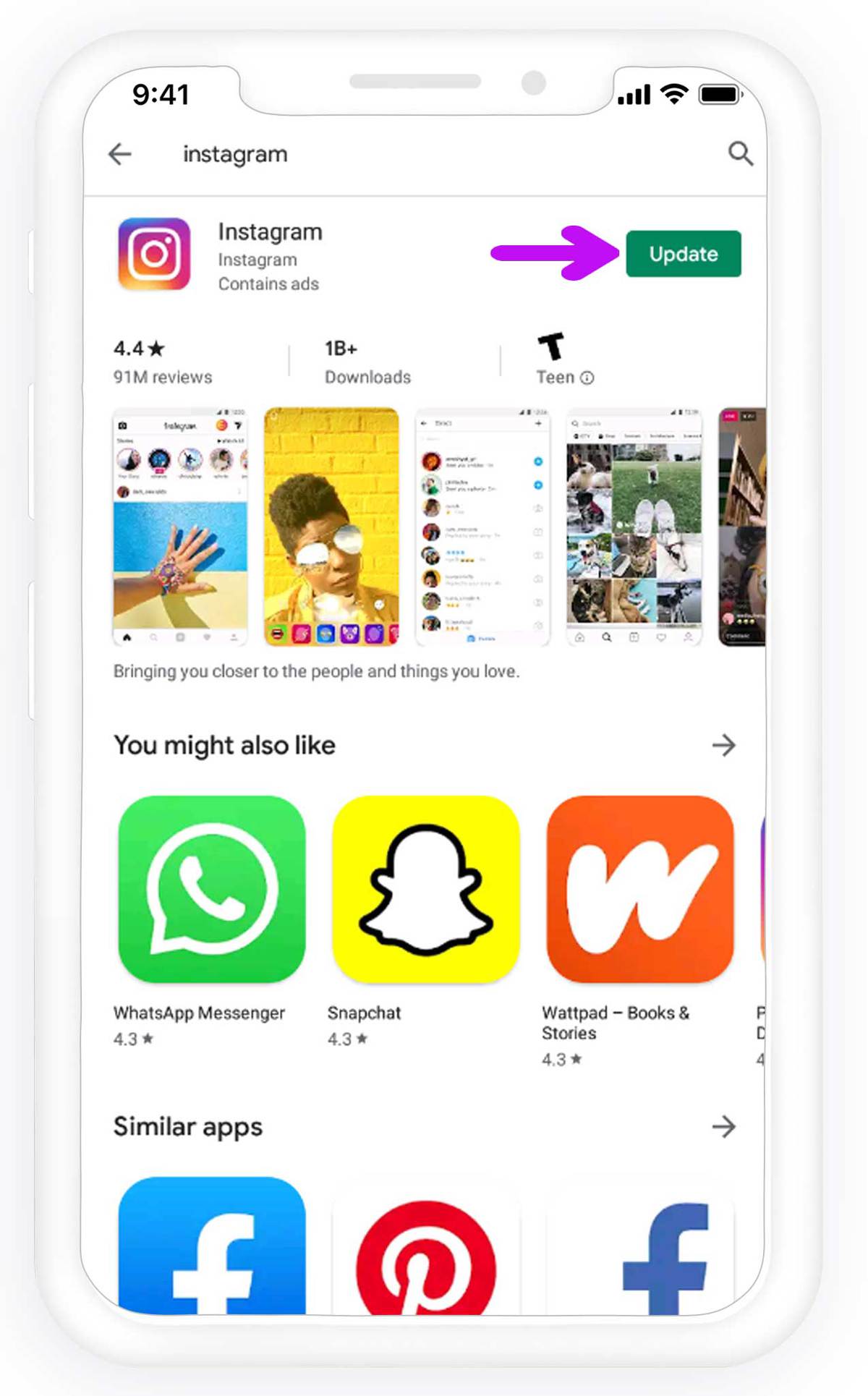
The first step is updating the Instagram app. Most of the time, the problem lies in an outdated version. Because of that, make sure you have the latest version at any given time. The auto-update should do the job, but you can look up updates manually, too.
To update the Instagram app:
- Open the Play Store app.
- Tap Menu.
- Look for Instagram in the Update tab.
- Choose to update.
- Once it’s done, open Instagram and try playing videos.

Spy on Facebook, WhatsApp, Instagram, Snapchat, LINE, Telegram, Tinder and other social media apps without knowing; Track GPS location, text messages, contacts, call logs and more data easily! 100% safe!
In case the videos still won’t play, let’s try additional steps.
Clear the Instagram app cache and data
Similar to most apps, Instagram stores a lot of data on the device. With particular settings, every picture or video posted is preserved in the phone’s storage or SD card. Moreover, there are a lot of cache files that may slow down the app gradually and impact video playback.
According to that, the next solution to Instagram videos not loading is clearing the cache and data from the app. Follow these instructions to clear the Data and Cache.
- Open Settings.
- Open Apps (Applications).
- Choose Instagram and open Storage.
- Clear Cache and Data.
- Restart the device.
- Open Instagram (you may need to log in to Instagram again).
- Try to play videos.
Some users use specific apps to automatically clear the cache. However, we don’t recommend any of them. The reason is that not only do they take up the storage space, but they also tend to work in the background and slow down all-around performance. Simply put, that kind of app gives more headaches than it brings good.
Reinstall Instagram
Sometimes the apps may get stuck because of some kind of corruption. Software sometimes has a mind of its own, and the only viable solution is reinstallation. So, if you’ve tried previous steps and the Instagram videos still won’t load, try this out. Most of the time, this should resolve the Instagram videos issue.
Restart the Wi-Fi router
Sometimes the connection may play the main part in Instagram wrongdoings. Some users reported on various forums that the Instagram videos work on Wi-Fi but won’t work on mobile data, and vice versa. So, the first step is to restart the Wi-Fi router. Turn it off, wait a minute or so, and then turn it on.
Additionally, you may want to update router firmware and change from the 5 GHz band to 2.4 GHz. Even though 5 GHz supports higher speeds, its signal isn’t as reliable as 2.4 GHz over distance. That, of course, is not an issue with dual-band routers.
Reset the Network settings
Once you’ve tweaked the router, let’s reset the network settings on the phone. That should fix common connection bugs and let you start from scratch. Have in mind to reestablish the settings again.
- Tap Settings.
- Open Backup & Reset.
- Choose Network Settings Reset.
- Tap RESET SETTINGS.
- Restart your device.
- Reconnect and check out Instagram videos.
Turn off the Power-saving mode
Thanks to one of our readers, we obtained another workaround that just may be the one that resolves the Instagram videos problem. He resolved the problem by disabling the Power-saving mode, which somehow interferes with the Instagram video playback.
So, navigate to Power settings, disable Power-saving mode, and the problem should be sorted out.
Read more: How to Download Instagram Videos, Photos, IGTV and Reels
Turn off data saving mode
Data saving, similar to power saving, might cause video playback problems on Instagram. Android OS does this to limit your data usage, so if the data plan you use is limited, you can skip this step.
Go to the phone’s settings and data usage section to handle this setting.
Conclusion
That should wrap it up. By using the methods outlined above, most Instagram video playback issues on Android can be resolved effectively. These solutions are designed to address the most common causes of the problem, such as app bugs, corrupted cache data, unstable network connections, restricted background data, or system-level conflicts. Updating the Instagram app, clearing cache, adjusting Android settings, and restarting the device often restores normal video playback quickly.
When these steps are applied correctly, users usually notice smoother loading, fewer crashes, and consistent video performance. Instead of dealing with frozen screens or endless buffering, Instagram videos begin playing as expected. Overall, following these proven troubleshooting methods provides a reliable way to fix Instagram videos not playing on Android and ensures a better, more stable Instagram experience.
In case you have any additional problems with Instagram videos, please feel free to tell us in the comments or reach out on Twitter. We’ll do our best to help resolve them. Keep in mind that sometimes the Instagram video playback issue is caused on the side of the platform, and all you need to do is wait for the problem to be solved by Instagram.
How useful was this post?
Click on a star to rate it!
Average rating / 5. Vote count: