
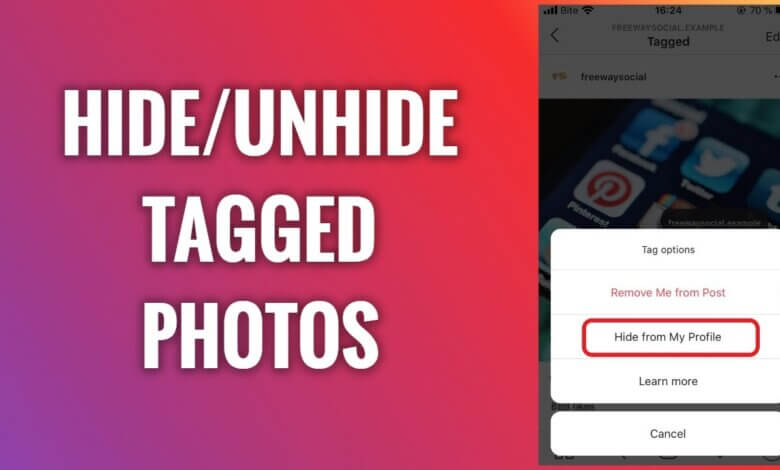
Instagram tagged photos are a powerful way to connect your profile with content shared by friends, family, and followers. When someone tags you in a photo, that image can automatically appear in the Tagged section of your profile, making it visible to anyone who visits your page. While this feature helps showcase shared memories and social connections, it doesn’t always reflect how you want to present yourself online. Not every tagged photo is flattering, relevant, or suitable for public display.
As Instagram has evolved, it has given users more control over their digital identity and privacy. One of the most useful—but often overlooked—tools is the ability to hide and unhide tagged photos. This feature allows you to manage which tagged posts appear on your profile without removing the tag entirely or offending the person who posted it. Hidden tagged photos are not deleted; they are simply removed from public view on your profile, giving you flexibility and peace of mind.
Learning how to hide tagged photos is especially helpful if you’re building a professional image, running a creator or business account, or simply trying to keep your profile clean and organized. At the same time, Instagram makes it easy to unhide photos later, allowing you to restore visibility whenever you change your mind. In this guide, we’ll walk through how to hide and unhide Instagram tagged photos step by step, helping you stay in full control of how you appear across the platform.
How to unhide tagged photos on Instagram?
To show the tagged Instagram photos, you should go to the Tags section under Privacy.
To unhide Instagram-tagged photos:
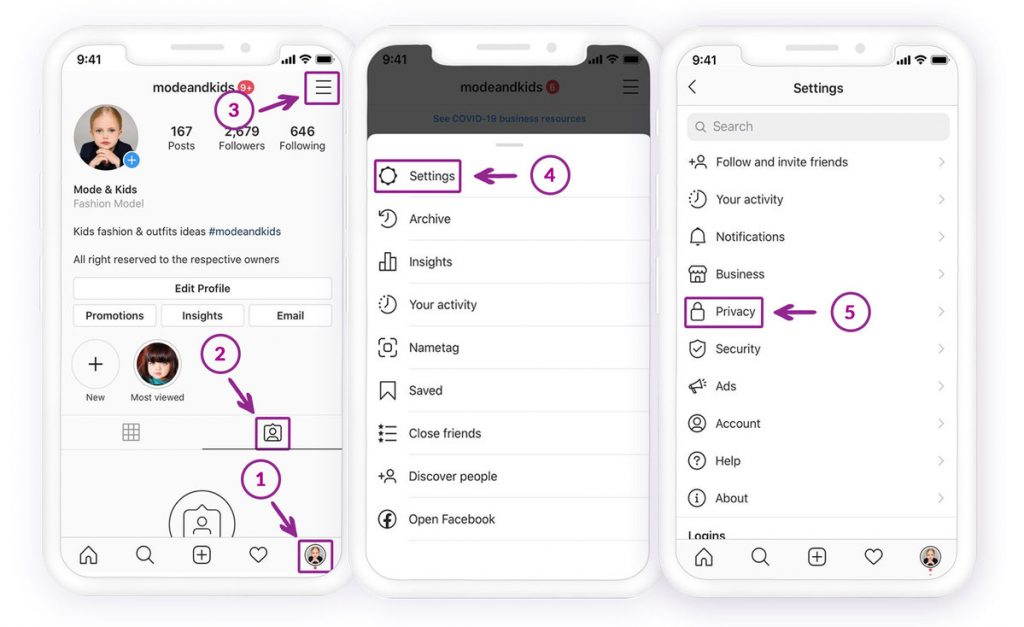
- Open the Instagram app and go to your profile by tapping the profile picture or username in the home.
- Find the tagged photo and check if the images are already there (then you can use the above method and unhide directly from the Instagram profile)
- Tap on the hamburger icon on the top right
- Go to Settings
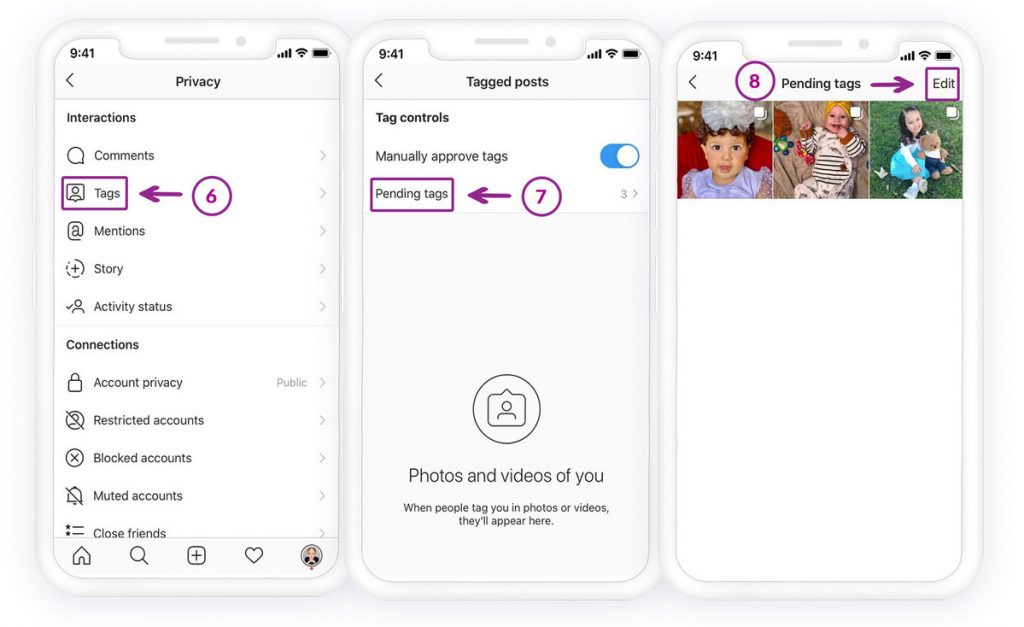
- Open the Privacy
- Find Tags. You should see the pending tagged photos (with their number), open it.
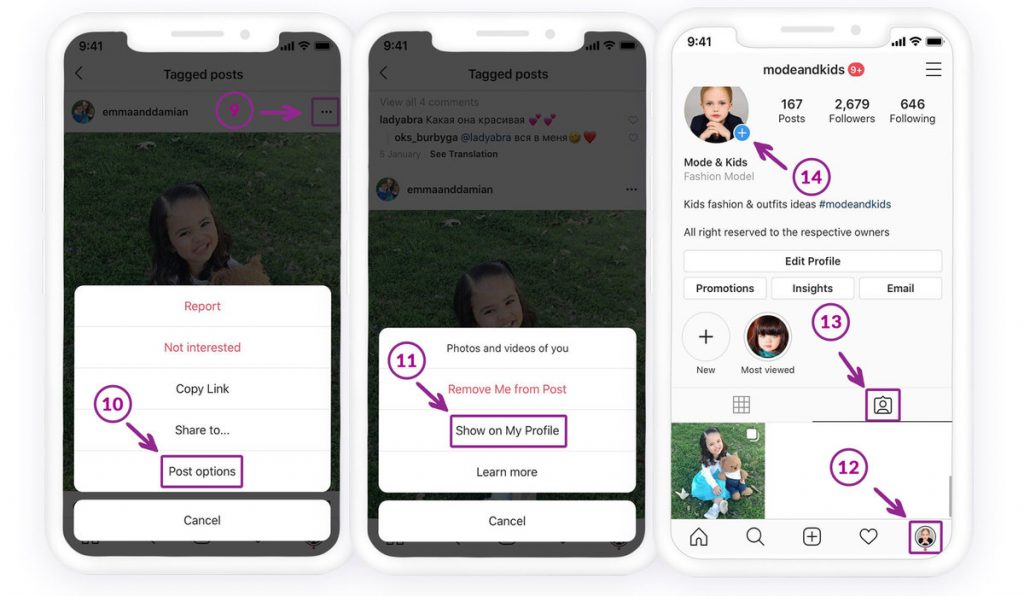
- Tap on any photo you want to unhide
- Tap on the three-dot icon on the top right of the selected photo
- You should see Post Options.
- Tap on Show on my Profile
You can see the tagged photos on your profile in the tagging section if you return to your profile.
How to hide tagged photos on Instagram?
If you are uncomfortable showing tagged photos on your Instagram feed, remove your name or hide it from your profile. Both options are available.
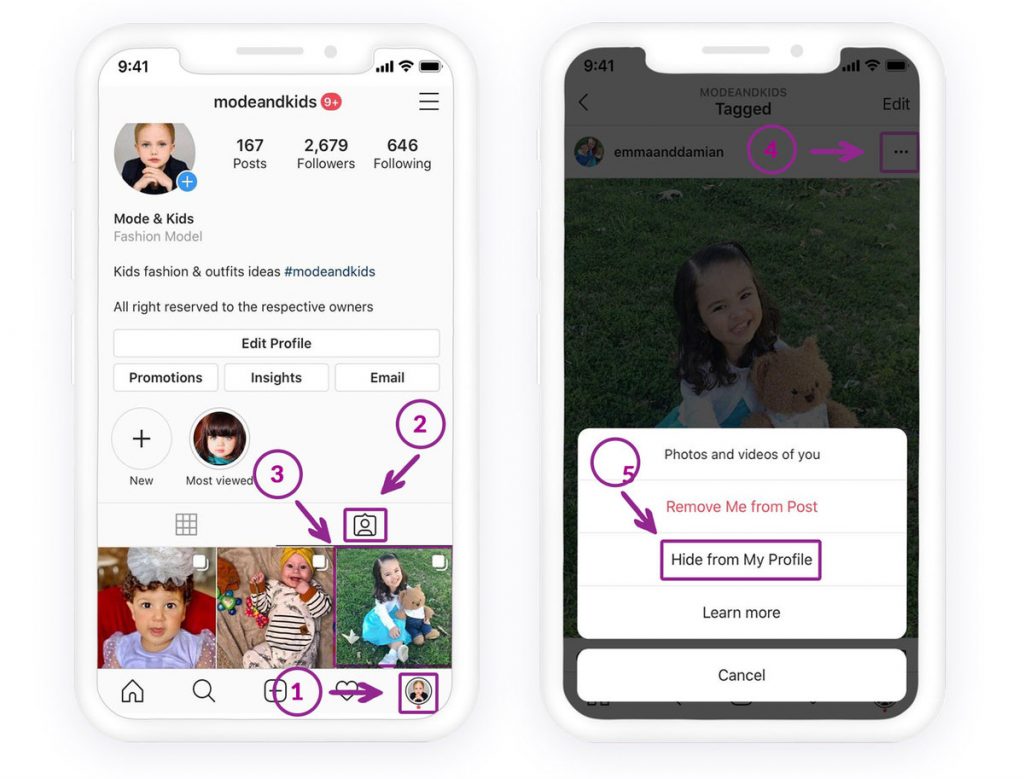
Method 1: Hide tagged photos directly from your profile
If you are looking for photos that people have tagged you in, you can go to your profile page on Instagram. Click on the icon under your bio. If anyone has tagged you in a photo, you can see it there.
You can tap on the picture; two options are available: remove me from the post, and hide from my profile. Tap on the button to turn on ”Hide from My Profile.” It will disappear from your profile for your followers, too.
- Open the Instagram app, and by tapping the profile picture, go to your feed.
- Find the tagging section and open it to see the Instagram-tagged photos.
- Please tap on the photo you are going to hide.
- Tap on the three-dot icon to see a few options
- Select Hide from my profile right there
However, if you have already removed a tag, the photos will not be in the tagged photos section, unless someone marks you again.
Method 2: Remove your name from tagged photos
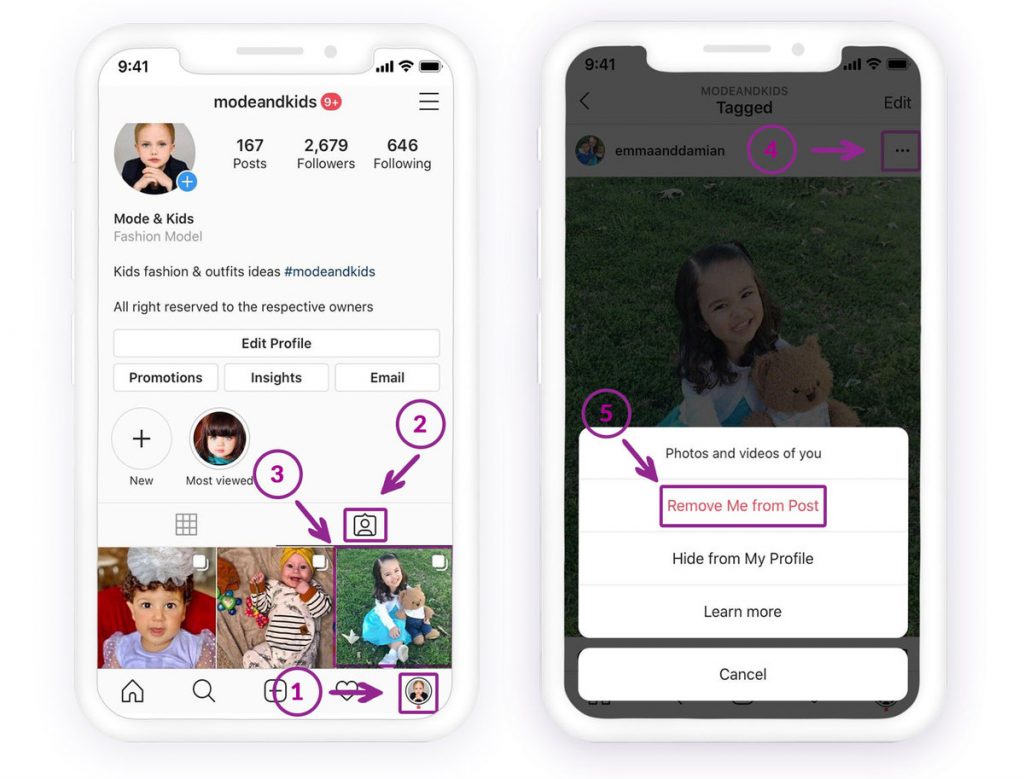
To do so, repeat the previous instruction. In the end, select Remove Me from the post. So, the post will no longer be showing on your Instagram feed.
You can also remove your name from the posts in the Tags section of Instagram in the Settings > Privacy.

Spy on Facebook, WhatsApp, Instagram, Snapchat, LINE, Telegram, Tinder and other social media apps without knowing; Track GPS location, text messages, contacts, call logs and more data easily! 100% safe!
If you go back to the Instagram feed and tap on the tagging section, you should no longer see the photos. You can find the hidden-tagged photos on Settings > Privacy > Tags.
How to tag people on Instagram?
If you are wondering how to tag people, while you are uploading a picture, you can see the bottom of the photo. You can tap on that and write the username of whom you are going to tag.
Even if you have posted a picture, you can go to the post. In the picture’s top left corner, tap the icon and select edit. While the edit is open, you can tap on the tag icon and write the usernames you want to tag.
It is possible to undo a hidden tagged Instagram photo of you back to your profile if you have not removed the tag from the image. If you have removed a tag, someone should tag you again in the picture.
Have you ever been tagged on those spammy or unprofessional photos on Instagram that you don’t want to have on your profile? Like that picture of your Drunk face at your friend’s wedding or that spam post from an unknown business account. I am here to tell you that you can untag yourself from those unwanted photos.
Phew! Right? Don’t worry, I’ll get you through this. Just follow the steps, and you will be all ok.
Just like Facebook, you can quickly get rid of your unwanted tagged photos or pictures that aren’t even of you!
If you want to see your tagged photos:
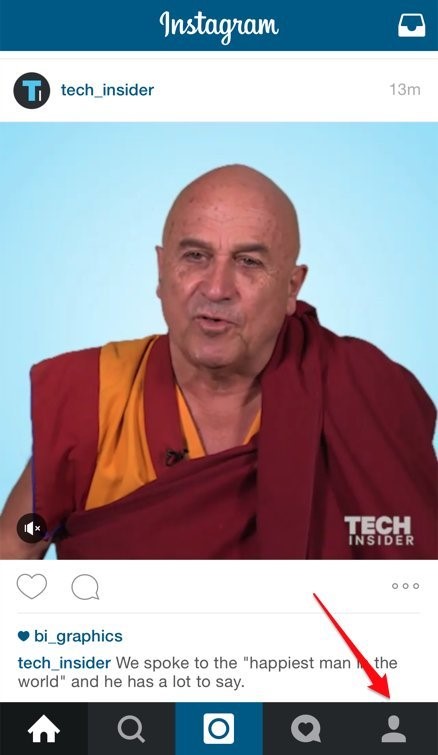
1. Go to your profile on Instagram
2. Tap on the “photos of you” icon
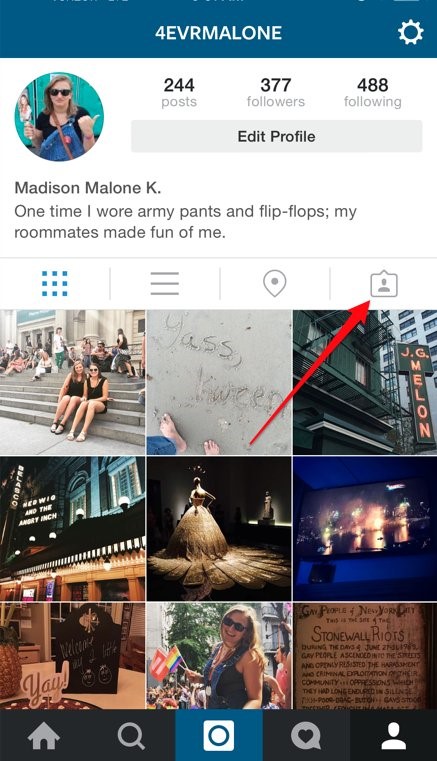
This is where your tagged photos are stored. If you have a photo that you don’t want to be tagged on anymore, keep reading this article, and I will show you how to remove it from your profile.
How to untag yourself from a photo on Instagram?
Instagram allows you to remove yourself from tagged photos. The only thing you need to do is follow these steps:
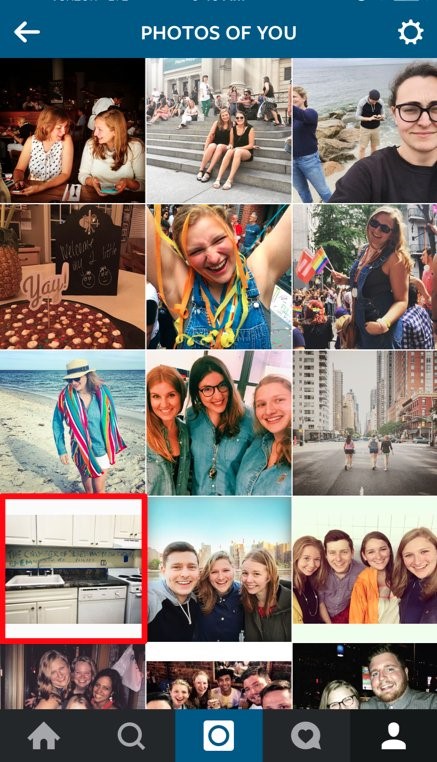
Step 1: Go to your tagged pictures, as we mentioned, and tap on the image you want to remove so that your username appears.
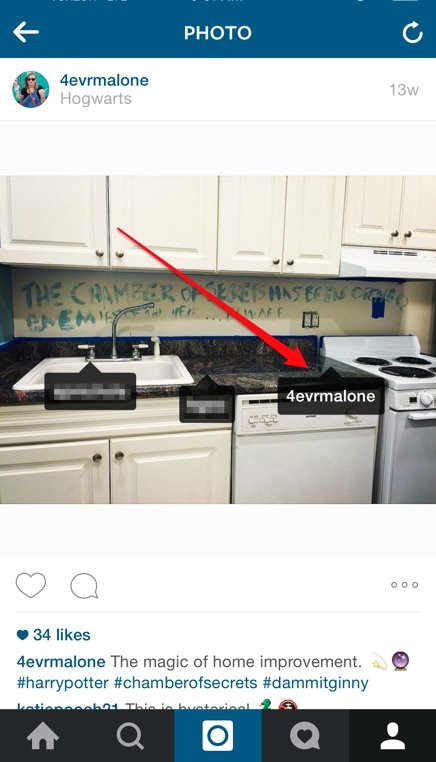
Step 2: Tap your username.
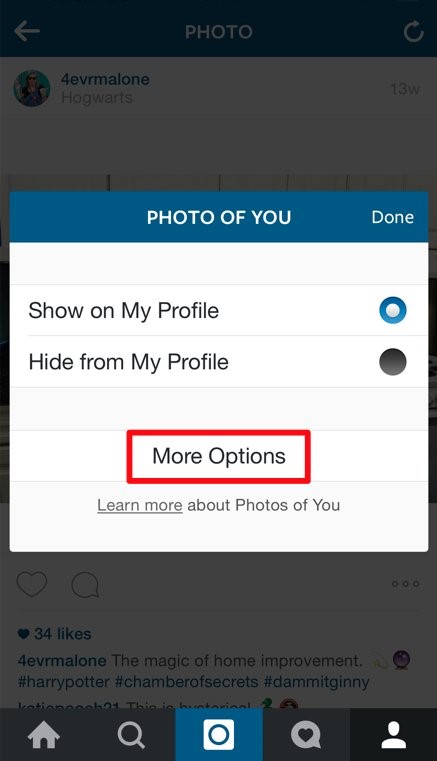
Step 3: tap on “more options.”
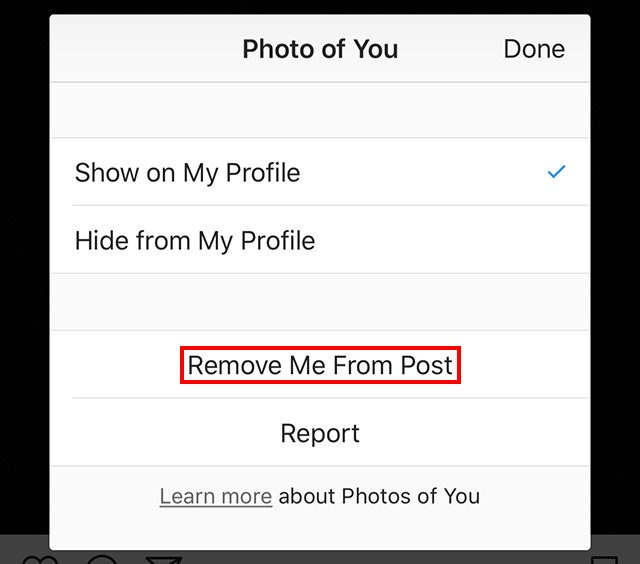
Step 4: Tap “Remove me from the post.”
Note: if you want to hide this photo from your profile ( and not to untag yourself from it), tap on “hide from my profile.”
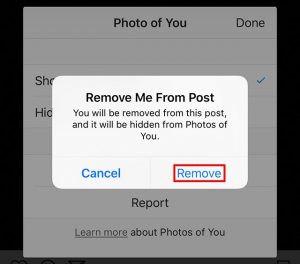
Step 5: Tap “remove” on the confirmation window that pops on. This will untag you from the post. I will also hide this photo from your profile.
And done! Nothing to be worried about.
Conclusion
Hiding and unhiding Instagram tagged photos is useful in many everyday situations, such as managing personal privacy, maintaining a professional image, or cleaning up your profile without deleting content. Whether you’re tagged in an unflattering photo, an outdated post, or content that doesn’t match your current style, the Hide option helps keep your profile organized. On the other hand, the Unhide feature allows you to restore tagged photos when they become relevant again.
After reading this article, users should have a clear understanding of when and how to use these two features. With the right steps, you can easily hide unwanted tagged photos and unhide them later if needed, solving both problems without affecting your relationships or the original posts.
How useful was this post?
Click on a star to rate it!
Average rating / 5. Vote count: