谷歌浏览器可能会出于各种原因追踪您的位置。例如,您可能正在访问某个网站,该网站会收集位置数据以更好地展示其产品或服务。或者,您的移动设备需要知道您的当前位置,以便为您提供天气等位置敏感信息。如果您不希望收到此类信息,则可能需要在谷歌浏览器中更改您的位置。您可能还希望伪造您的位置,以便访问在您当前位置可能无法访问的信息和内容。
Whatever the reason, this article will provide you with everything you need to know to change the location on Google Chrome for iPhone, Android, PC, or Mac. Let’s begin with exactly how Google Chrome determines your current location.
第一部分:谷歌浏览器如何知道你在哪里?
Google Chrome 可以通过 GPS、Wi-Fi 连接或 IP 地址确定您的位置。由于 Google Chrome 可在电脑、智能手机和平板电脑上运行,因此此过程适用于所有设备。
GPS
所有移动设备和平板电脑都内置了可以与 GPS(全球定位系统)卫星连接的硬件。这些卫星拥有强大的无线电发射器,会将当前时间传输到接收器(您的设备)。您设备上的 GPS 接收器通常会接收来自多颗卫星的信号,然后利用这些卫星的时间戳来计算其在地球表面上的位置。
This system can be pretty accurate, although the typical GPS location from a smartphone is often 10-20 feet from the actual location. Chrome will then use the information gathered by your device’s GPS to access your location.
Wi-Fi
All Wireless networks or routers transmit a Basic Service Set Identifier (BSSID). This is a token that is used to determine the router or network’s point of identity. While the BSSID doesn’t provide any actual location information, the location can be derived from the IP address that the router has access to.
The location of a BSSID can be determined because the BSSID’s information is public. Every time you access the network using a smartphone or any other device, Google makes a note of the device’s GPS location at the time of the connection. The database with this location can grow over time, and correlations between the BSSID connection and geolocation can be established, such that when Chrome needs to know where you are, it just needs to find this correlation in the database.
IP地址
Google Chrome 浏览器还可以通过设备的 IP 地址获取设备的当前位置。IP 地址是分配给网络中所有设备的标签,它是唯一的,其定位方式与 Wi-Fi 类似。您的 IP 地址本身并不直接知道您的位置,但 IP 地址范围与您所在国家/地区的区域之间存在关联。这些关联可以相当准确地确定您的位置,尽管不如 GPS 精确。例如,在美国,您的 IP 地址可以用来确定您所在的城市,但不太可能确定您的家庭住址。
第二部分:如何在 iPhone 上的 Google Chrome 浏览器中更改位置信息
在 iPhone 或 iPad 上的 Google Chrome 浏览器中,有两种方法可以更改位置信息。它们包括以下几种:
Option 1. Use Location Changer (iOS 26 Supported)
The best way to change the GPS location on your iPhone is to use 位置更改器 这款程序只需单击一下即可将您的位置更改为世界任何地方,非常适合您希望 Chrome 停止使用您的位置信息,或者想要访问您所在地区可能无法访问的内容。使用这款 iOS 位置欺骗工具的主要优势之一是,您无需越狱 iPhone 或在设备上安装任何第三方应用程序即可更改位置。
只需在您的电脑上安装 Location Changer,然后按照以下简单步骤操作即可:
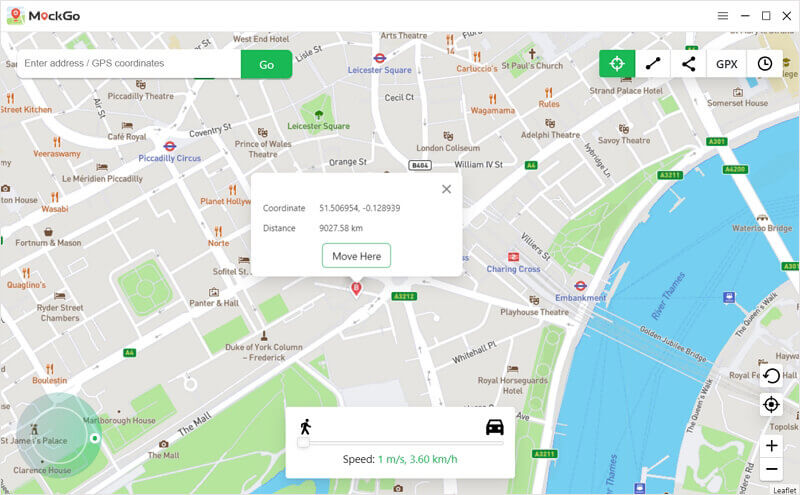
步骤 1 在您的计算机上运行位置更改器。默认模式为“更改位置”,这正是我们需要的操作。

步骤 2 : Connect your iPhone to the computer using a USB cable and then click on “Enter” to begin. Please note that you may need to unlock the device. You may also need to tap “Trust” if a message pops up asking you to “Trust this Computer”.
步骤 3 然后屏幕上应该会出现一张地图。选择您想要使用的位置,然后点击“开始修改”,您的 iPhone 位置将立即更改为所选位置。
选项 2. 更改位置设置
您也可以在 iPhone 的“设置”中更改 Google Chrome 的地理位置。请按照以下简单步骤操作:
- 在 iPhone 上点击“设置”,然后向下滚动并点击“Chrome”。
- Tap “Location” and then choose either “Never”, “Ask Next Time”, or “While Using the App” depending on your preferences.

第三部分:如何在安卓系统的谷歌浏览器中更改位置信息
选项 1. 使用位置更改器
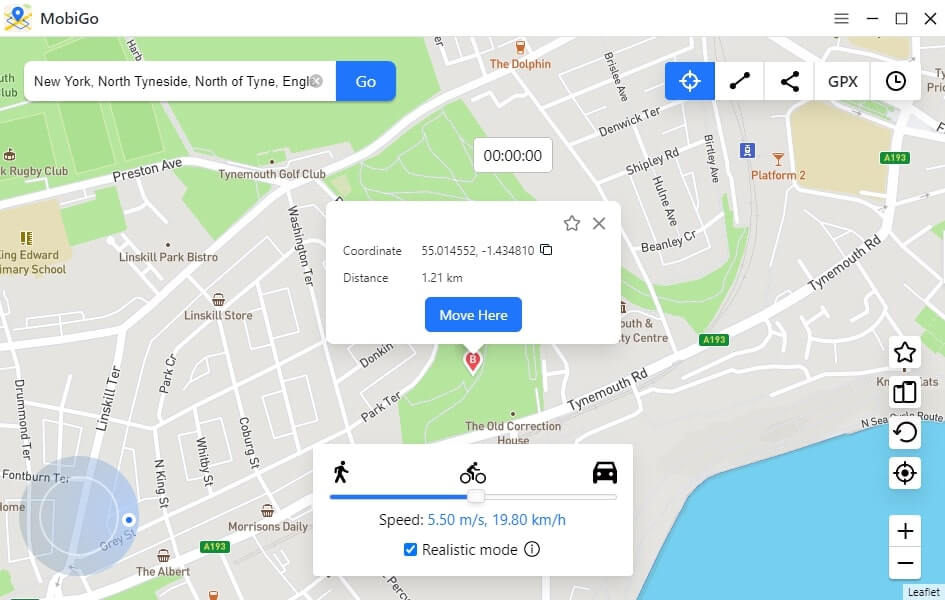
If you want to change the location on Google Chrome, 位置更改器 is also the best choice for your Android device. Location Changer can help you change your Android location in one click without rooting. It supports all Android devices, including Samsung, LG, Sony, Huawei, Xiaomi, Oppo, Vivo, and more.
方案二:使用应用程序
您可以使用一款名为“Fake GPS”的应用轻松更改安卓设备上的谷歌定位,该应用可在谷歌应用商店下载。使用该应用,您可以将位置更改为任何您想要的位置。以下是具体操作方法:
步骤 1 在您的安卓设备上安装该应用。打开应用后,它应该会显示您当前的位置。移动屏幕上的蓝色圆点来选择您想要使用的新位置。或者,点击顶部的三个竖点,选择“位置”,然后选择一个位置。
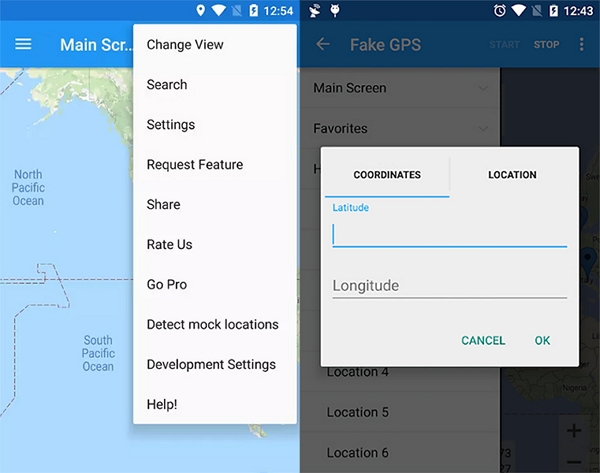
步骤 2 : Go to Settings > Developer Options and then tap “Set Mock Location” to select the Fake GPS app.

步骤 3 : Go back to the app and click “Start” to change the location.
Part 4. How to Change Location on Google Chrome on Windows or Mac
要更改计算机上的 Google Chrome 位置,请按照以下简单步骤操作:
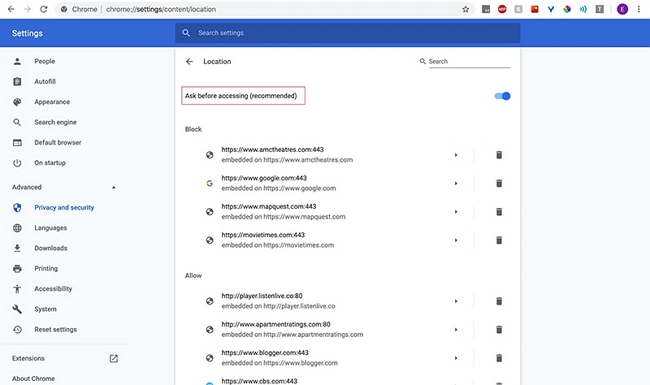
步骤 1 : Open Google Chrome and click on the three dots at the top to select “Settings” from the menu that appears.

步骤 2 向下滚动到“高级”部分,然后点击“隐私和安全”>“网站设置”。
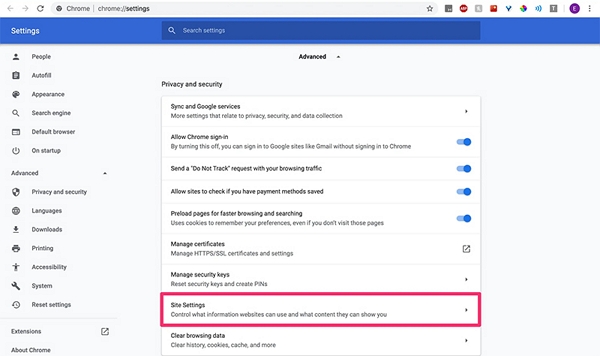
步骤 3 点击“位置”,然后关闭“访问前询问”。
结论
Now you know how to change the location on Google Chrome for all devices. Location-based information can be important, but sometimes you just don’t need Chrome to know where you are. If you have any questions about the processes described above, let us know in the comments section below, and we’ll be glad to help.
这篇文章对你有多大帮助?
点击星星进行评分!
平均评分 / 5. 投票数: