Ukubuyiselwa Kwezithombe Okuhle Kakhulu: Buyisela Izithombe Ezisusiwe Kukhompyutha Mahhala


Photo is one of the most important kinds of files on the computer and I believe every computer saves lots of precious pictures, especially for designers and photographers. As time goes by, your computer would run slow and own less and less space to save new files. You may clean up your Windows computer by deleting files, including photos. Since the names of pictures are usually similar and only one or two characters are different, mistakenly deleting often occurs. At that time, what you need urgently is to buyisa izithombe ezisusiwe kukhompyutha , but how to find out the missing data?
First, make sure whether you lost the photos that you need and where they are saved.
Thola izithombe ezifanele kakhulu kukhompyutha yakho ephathekayo noma kudeskithophu futhi ukuze uqiniseke ukuthi izithombe zisusiwe yini. Bese, khumbula ukuthi iyiphi idiski egcine izithombe ezisusiwe ngaphambilini ngoba lokhu kuzokusiza ukuthi uye enkambisweni yokutakula. Uma ungaqiniseki ngamafomethi ezithombe ezingekho, akuyona inkinga yokuthonya ukutakula ngoba amafomethi amaningi esithombe ayasekelwa:
PNG, JPG, TIFF, TIF, BMP, GIF, PSD, RAW, CRW, ARWCR2, NEF, ORF, RAF, SR2, MRW, DCR, DNG, ERF, AI, XCF, DWG, X3F, njll.
Okwesibili, yeka ukusebenzisa ikhompyutha yakho ye-Windows , ikakhulukazi ukulanda nokufaka izinhlelo zokusebenza, ukusakaza umculo, njll. ku-hard disk drive lapho idatha elahlekile yayigcinwe khona. Singase singazi okuningi ngemithetho yokugcina idatha ku-Windows OS. Idatha esusiwe empeleni ayisuswa ngokuphelele kukhompyutha ekuqaleni ifihlwe endaweni ethile ku-hard drive. Uma uqhubeka nokusebenzisa idivayisi futhi ufaka idatha entsha, idatha esusiwe eyonga isikhala izosuswa yileyo datha esanda kufakwa, ngisho nokufaka uhlelo lokusebenza, ukudala idokhumenti, njll.
Third, check and recover deleted photos from Recycle Bin Akungabazeki ukuthi i-Recycle Bin iyindlela yokuqala ozama ngayo ukuthola izithombe ezilahlekile. Vele uchofoze kabili isithonjana se-trash bin kudeskithophu bese uthola okufunayo kuyo. Uma kunezinto eziningi ku-Recycle Bin yakho, ungasebenzisa ibhokisi lokusesha bese uthayipha igama lesithombe ukuze usithole. Uma usithola ngenhlanhla, chofoza kwesokudla esithombeni bese usibuyisela endaweni yokuqala. Sicela uqaphele ukuthi izithombe ngeke zitholakale ku-Recycle Bin uma zisuswa kumakhadi ememori, ama-USB flash drive, noma ama-smartphone.
Tips: As you deleted the image just now and you didn’t do anything else, you can use Undo command – press “Ctrl+Z” to get the deleted files back to their original place.
Finally (Significantly), find a photo recovery software to undelete pictures . Data Recovery plays an important role in managing deleted pictures on Windows since it is compatible with ukutakula kusuka ku-hard drive, imemori khadi, i-USB flash drive, ikhamera yedijithali, nokuningi . Don’t hesitate! Search Google and get Data Recovery, one of the top data recovery wizards, on your computer. Windows 11/10, Windows 8, Windows 7, and Windows XP are supported.
U-downloader mahhala U-downloader mahhala
Steps to Use the Best Photo Recovery Software
Step 1. Launch Data Recovery on the Desktop.
When you view the homepage of the program, it lists the file types and hard disk drives for you to select. If you tend to recover files from removable drives, like the SD Card, it is in need to connect it to the computer and choose it to scan.
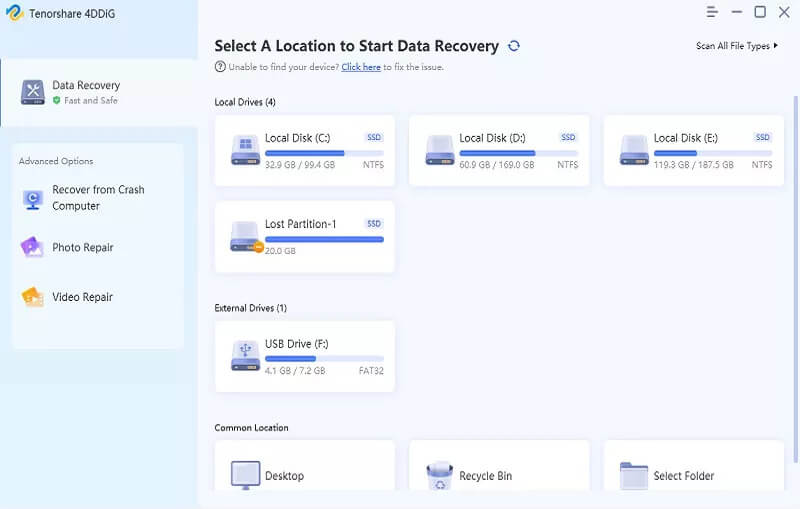
Step 2. Select “Photo” to Go on Scanning.
Ngemva kokuhlola ibhokisi lezithombe bese ukhetha i-hard drive, uhlelo luzoqala ukuskena. Luzohambisana ne-“Quick Scan” ngokuzenzakalelayo futhi lusebenza ngokushesha okukhulu.

NOTE: Deep Scan allows you to move further steps to access the computer’s data, which will take a little long time but it can find more files.
Step 3. Check the Scanned Results.
Yonke imiphumela iboniswa ngezigaba ezimbili: Uhlu Lohlobo kanye Nohlu Lwendlela.
Ohlwini lwezinhlobo, ungabuka wonke amafomethi ezithombe, isib: i-BMP, i-GIF, i-PNG, i-JPG, nokuningi.
In the path list, the files are displayed according to their paths.
Ungafaka igama noma indlela kubha yokusesha ukuze uhlunge izithombe. Ukuchofoza kabili nje esithombeni bese ungasibuka kuqala.
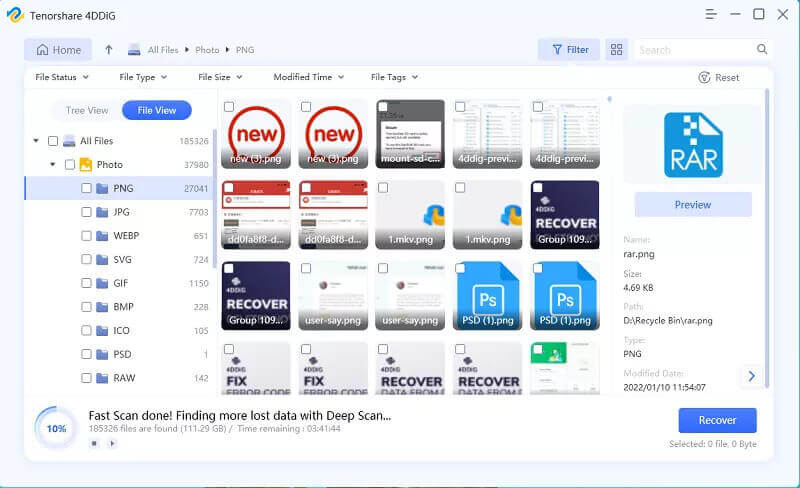
Step 4. Successfully Recover the Deleted Photos.
As the ideal images are found, choose them and click the “Recover” button to retrieve .png/.jpg back to the computer. You can restore the lost photos on Windows PC and transfer them anywhere you like.
Isiphetho
Nakuba kungekho ndlela eyodwa kuphela ewusizo ekubuyiseleni izithombe ezisusiwe ku-PC, i-Data Recovery kulula ukuyisebenzisa ezimweni zokubuyisa izithombe. Iyadingeka ukuze kuthuthukiswe ulwazi ngokulondoloza idatha. Kungakhathaliseki ukuthi idatha ikukhompyutha noma kufoni, backup files regularly kungakusindisa enkingeni enkulu.
U-downloader mahhala U-downloader mahhala
Bekuwusizo kangakanani lokhu okuthunyelwe?
Chofoza inkanyezi ukuze uyilinganisele!
Isilinganiso esimaphakathi / 5. Inani lamavoti: