

You may want to save a video that you found on YouTube and then watch it when you’re away from Wi-Fi. Downloading YouTube videos to your iPhone or iPad will give you access even when you are not connected to the internet.
How to download YouTube videos on iPhone or iPad? If you have no idea about it, we’ll show you how.
It may be a bit more difficult than downloading YouTube videos to your computer. But that doesn’t mean it is impossible. There are several ways to save your favorite YouTube videos to your iOS device. This post will show you 5 effective ways to download YouTube videos on an iPhone or iPad.
Way 1: Subscribe to YouTube Premium to Download YouTube Videos for Free
The most direct way to download YouTube videos to your iPhone or iPad is with a YouTube Premium subscription. This may be the only legal way to save YouTube videos to your iOS device. When you subscribe to YouTube Premium at $11.99 per month, you will be able to watch videos without ads and see the download button below the videos. Here’s how to download YouTube videos at 1080p for offline viewing:
- Open YouTube and find the video that you want to save to your iPhone/iPad.
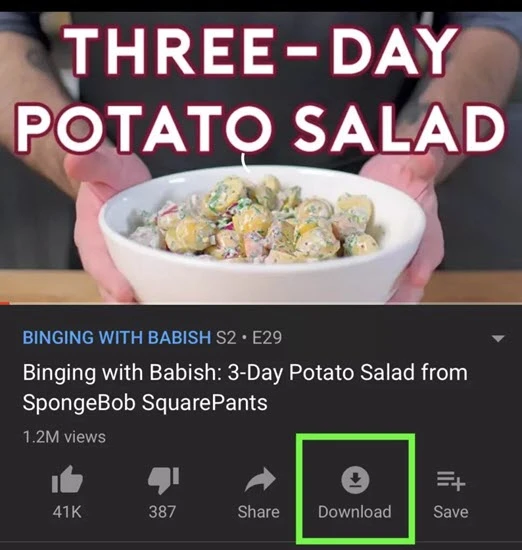
- ຄລິກໃສ່ ດາວໂຫຼດ button while the video is playing in the YouTube app.
- ຈາກນັ້ນໄປທີ່ ຫໍສະໝຸດ > ດາວໂຫຼດ to find the downloaded video and freely view it whenever you want.
Way 2: How to Download YouTube Videos to iPhone via Shortcuts App
If you don’t want to subscribe to YouTube Premium, you can choose to use the third-party Shortcuts app to download the YouTube videos to your iOS device. Please first update your iPhone or iPad to the latest iOS version and then follow these simple steps to download YouTube videos using the Shortcuts app:
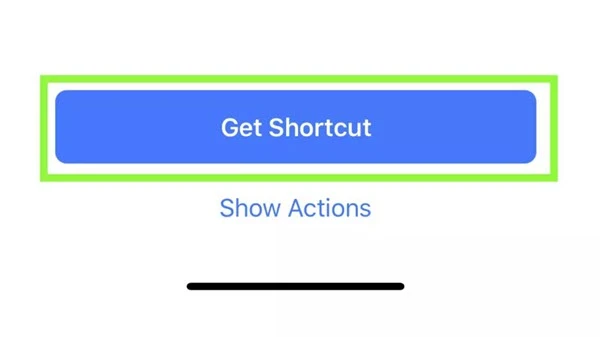
ຂັ້ນຕອນທີ 1 : Download the ທາງລັດ app from the App Store and then open this page on your device. Tap Get Shortcut ເພື່ອຕິດຕັ້ງມັນ.
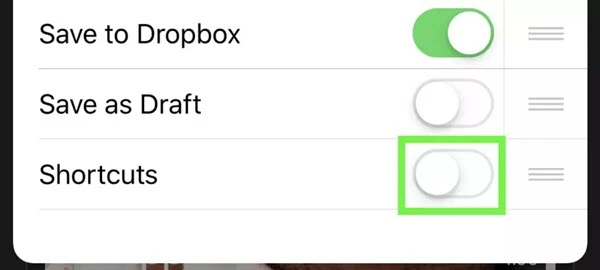
ຂັ້ນຕອນທີ 2 : Open any app and tap on the ແບ່ງປັນ button. Swipe to the left on the rows of icons at the bottom until you see the More icon. Tap on it and then turn on the switch next to Shortcuts.
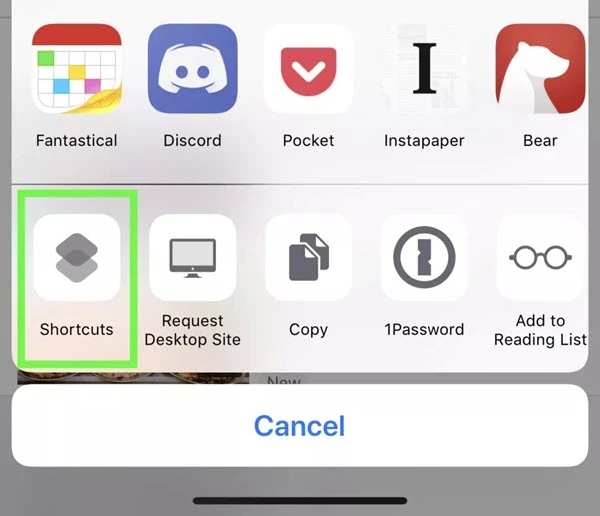
ຂັ້ນຕອນທີ 3 : Now open the YouTube app and play the video you want to download. While the video is playing, tap on ແບ່ງປັນ ແລະຈາກນັ້ນເລືອກ ທາງລັດ .
ຂັ້ນຕອນທີ 4 : Tap Download YouTube and the video will be downloaded to your iPhone. Once the video is downloaded, tap on Save to Photo Album and the video will be available in the Photos app.
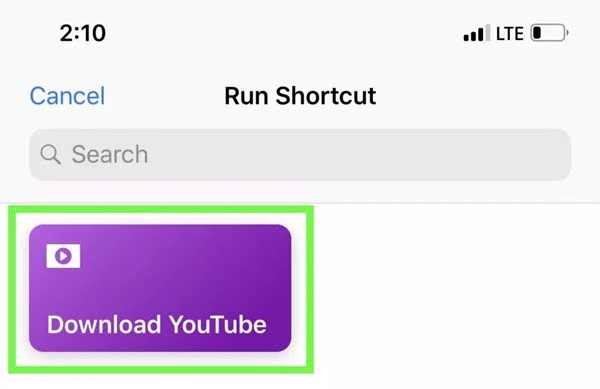
Way 3: How to Download YouTube Videos on iPhone via Online Tool
Apple has removed all YouTube video downloader apps for iPhone from the App Store. Luckily, there is a workaround to download YouTube videos to your iPhone or iPad. You can use a file manager app and online tool to save videos from YouTube. Here’s what you need to do:
ຂັ້ນຕອນທີ 1 : Download and install the Documents by Readdle app onto your device. It is a free file manager app that comes with an in-built browser, which can help you download YouTube videos.
ຂັ້ນຕອນທີ 2 : Now go to YouTube and locate the video that you would like to download. Tap on the ແບ່ງປັນ icon and then select ສຳເນົາລິ້ງ .
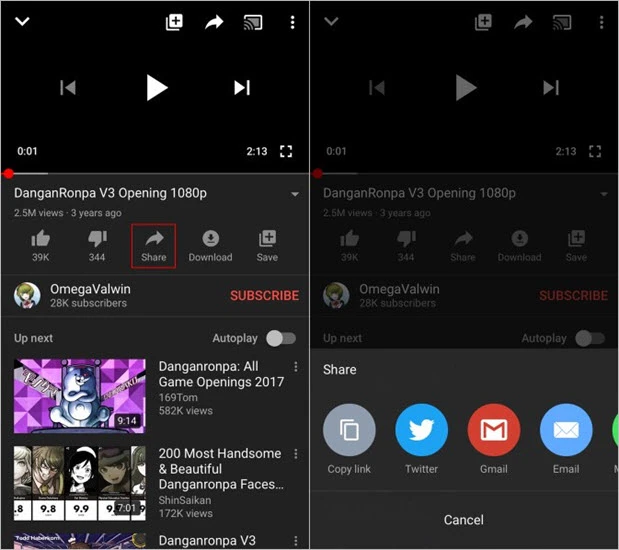
ຂັ້ນຕອນທີ 3 : Back to the Documents app and tap on the icon at the bottom-right corner to access the browser. Go to an online downloader like Y2Mate to paste the link in the provided field.
ຂັ້ນຕອນທີ 4 : Click on the ດາວໂຫຼດ button and the site will list the download link for the video. Choose the quality you need and tap the ດາວໂຫຼດ button next to it. Once the video is downloaded, you can move it into your iPhone’s Camera Roll.
Way 4: How to Download YouTube Videos in One-click
Unlike the video downloader apps for iPhone, there are many video downloader tools available to download YouTube videos onto a computer. In this case, you can also download videos from YouTube on your desktop and then transfer the video to your iPhone or iPad.
Here we recommend you use ໂປຣແກຣມດາວໂຫຼດວິດີໂອອອນໄລນ໌ , a great tool to download videos from YouTube and other video-sharing sites. Using it, you can download videos in 720p, 1080p, 2K, and even 4K at a fast speed.
Follow these simple steps to download YouTube videos.
ຂັ້ນຕອນທີ 1 : ດາວໂຫຼດ ແລະ ຕິດຕັ້ງ ໂປຣແກຣມດາວໂຫຼດວິດີໂອອອນໄລນ໌ on your computer. Run the program after installation.
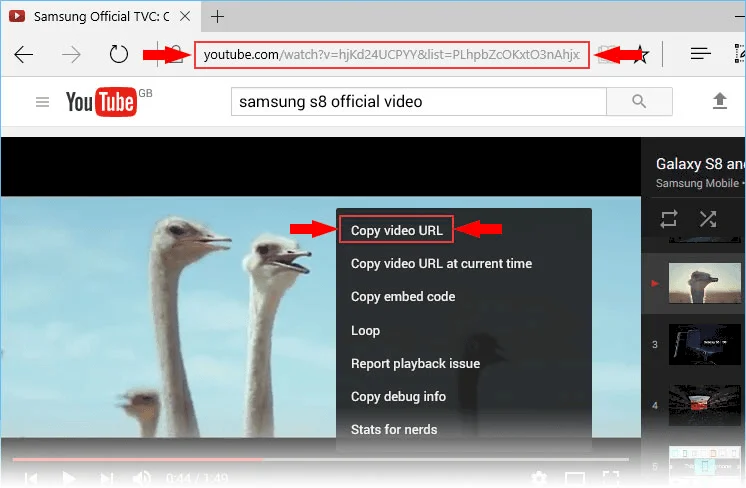
ຂັ້ນຕອນທີ 2 : Open YouTube on your computer and copy the link for the video in the address bar.
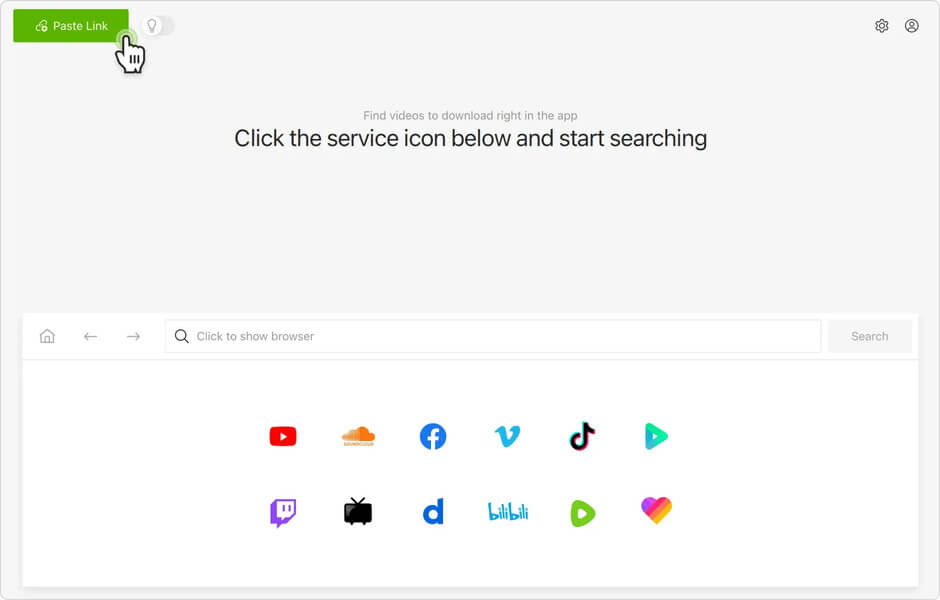
ຂັ້ນຕອນທີ 3 : Go back to the Downloader and click on the + ວາງ URL icon to paste the video’s link into the program. In the popup box, you can choose your preferred settings including the output quality and save location.
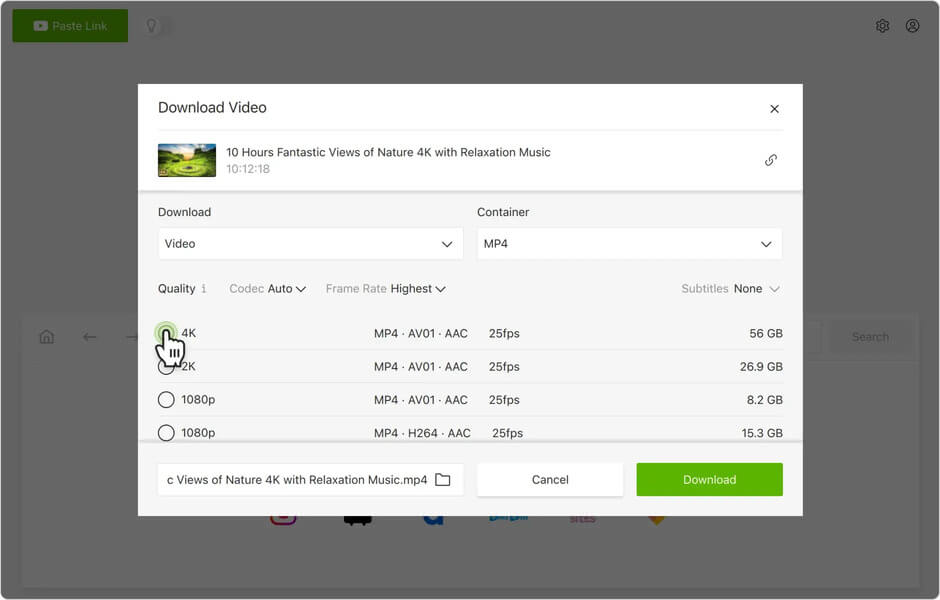
ຂັ້ນຕອນທີ 4 ຄລິກ ດາວໂຫຼດ and the program will begin downloading the video. When the download is complete, click on the ໂຟນເດີ icon to access the downloaded video.
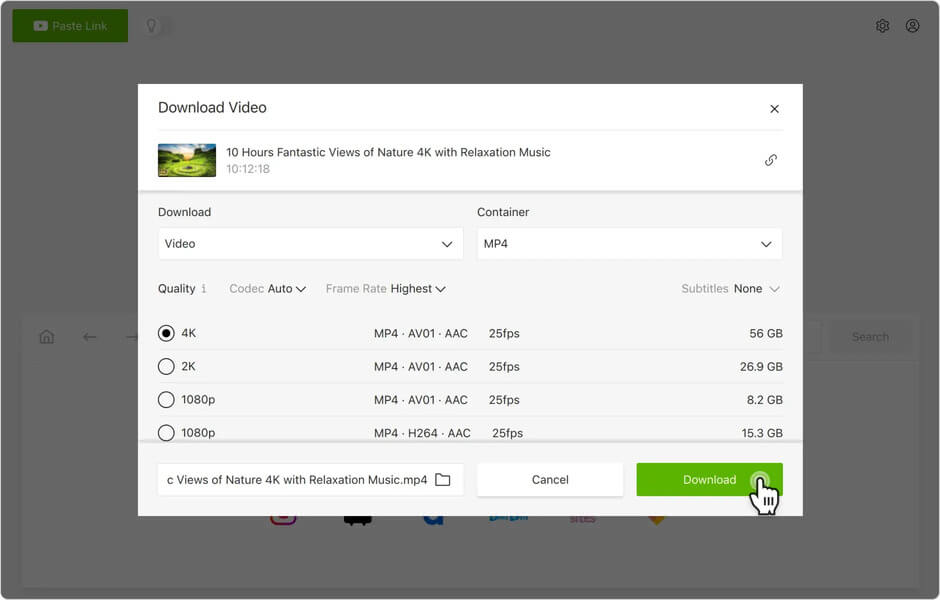
You can then easily transfer the downloaded YouTube video to your iOS device using iTunes or any other iPhone management tool like iPhone Transfer.
Way 5: How to Save YouTube Videos to iPhone by Screen Recording
If your iPhone is running iOS 11 or later versions, you can easily record your device’s screen and you can make use of this feature to record the YouTube video you would like to save. This method is simple and completely free. Follow these simple steps to do it:
- Open the YouTube app on your iPhone and find the video you want to download.
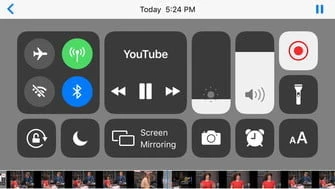
- Change the orientation of your device to landscape and then swipe up to access the ສູນຄວບຄຸມ . Tap on the Record ປຸ່ມ.
- Start playing the video and when the video stops, tap the Record button again to end the recording. The recorded video will be saved in your Camera Roll.
ໂພສນີ້ມີປະໂຫຍດແນວໃດ?
ຄລິກໃສ່ດາວເພື່ອໃຫ້ຄະແນນມັນ!
ຄະແນນສະເລ່ຍ / 5. ຈຳນວນຄະແນນສຽງ:



![ວິທີດາວໂຫຼດ TED Talks ພ້ອມຄຳບັນຍາຍ [ວິທີແກ້ໄຂງ່າຍໆ]](https://www.getappsolution.com/images/download-ted-talks-with-subtitle-390x220.jpg)