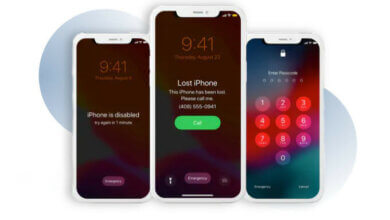
Is there any chance of restoring an iPhone without a passcode? This is the question that most users often ask in different forums. When will users need to restore an iPhone without a passcode, even if all the information may be wiped out after the reset?
Part 1. Reasons to Restore iPhone without a Passcode
It is not a simple thing to perform the restore. Doing the restoration will greatly affect the device data. However, it is sometimes inevitable to do that to solve some unwanted issues:
- When you have a 2nd-hand iPhone with an existing iCloud account.
- When you decide to sell your old iPhone, you need to erase all the device information to avoid data leakage.
- When your iPhone is disabled and you are not sure what the password is.
- When your iPhone is having various issues occur after a software or iOS version update.
You can jump to the next part if you know the reasons to restore your iPhone without a passcode.
Part 2. Various Solutions to Restore iPhone without a Passcode
Different solutions are collected in this post to perform the device restoration without using the passcode. You can make a comparison and choose the best one for you.
Restore iPhone Through iTunes
The primary condition for iTunes restore is to ensure that the iPhone has been previously synced to iTunes. If so, the device will be automatically recognized when it is plugged in. Always remember to back up your iPhone with iTunes before restoring it. This will prevent data loss.
Kauj Ruam 1. Plug the device into a Mac or PC and launch iTunes. If you have seen the device tab on the top navigation bar, click on it and hit “Summary” on the sidebar.
Kauj Ruam 2. Click on the “Restore iPhone” option located in the lower right-hand corner of the Summary interface.
When the iPhone system is restored by iTunes, all the information will be erased, including the passcode. You can now turn on the device and access it without a passcode. To transfer the data you previously backed up to the iPhone, you can then restore the device with the previous iTunes backup.
Restore iPhone without a Passcode via Settings
This method could easily come to mind when you have ever created an iCloud backup, and the feature of “Find My iPhone” is turned on, so that you and your iPhone will be identified as the correct user.
Kauj Ruam 1. On the reset interface of your iPhone, click on tap “Erase All Content and Settings”.
Kauj Ruam 2. The iPhone will get restarted and enter the ‘Hello’ screen. Follow the simple tips on the screen and set it up as a brand-new device.
Kauj Ruam 3. On the ‘Apps & Data’ interface, select ‘Restore from iCloud Backup’ to proceed.
Restore iPhone Using iCloud
One of the preconditions of this method is to enable Find My iPhone. If your iPhone is disabled, you should have another iOS device that you have access to.
Step 1. Begin by signing into the iCloud account on an accessible iPhone, iPad, or Mac.
Step 2. After signing in, choose ‘Find iPhone’ and locate the device you need to restore without a password.
Step 3. There will be 3 options under the selected device. Select ‘Erase iPhone’ and this will erase the device information and restore the device.

If the data on the iPhone has even been backed up with iCloud, you will then be able to get it back by restoring the iCloud backup.
Restore iPhone without a Passcode via iPhone Unlocker
You may want to restore your iPhone without a passcode when you need to bypass the iCloud account or when you lose the screen passcode. Whatever the reason is, it will make you tense and stressed. Yet, here is one more easy solution to this tough nut – iPhone Unlocker .
Main reasons to choose iPhone Unlocker:
- Remove the screen passcode from the disabled iPhone in only 5 minutes.
- Unlock a disabled iPhone with a broken screen or without a passcode.
- Supports iOS 18, iOS 26, iPhone 17, iPhone 17 Pro, iPhone 17 Pro Max, etc.
Procedures to restore an iPhone without a passcode with iPhone Passcode Unlocker
Kauj Ruam 1. Pib iPhone Unlocker and select the feature of “Unlock Screen Passcode from the main Window.

Kauj Ruam 2. Click “Next” and see if the device is connected to the program. If not, you will need to enter the iPhone into Recovery/DFU mode.
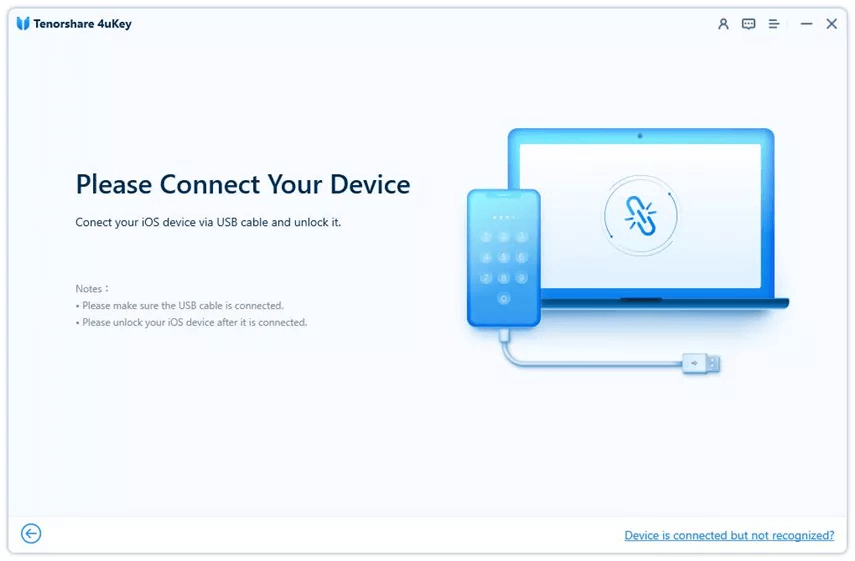
Kauj Ruam 3. If the device is detected by the program, click “Download” to verify and install the latest firmware.
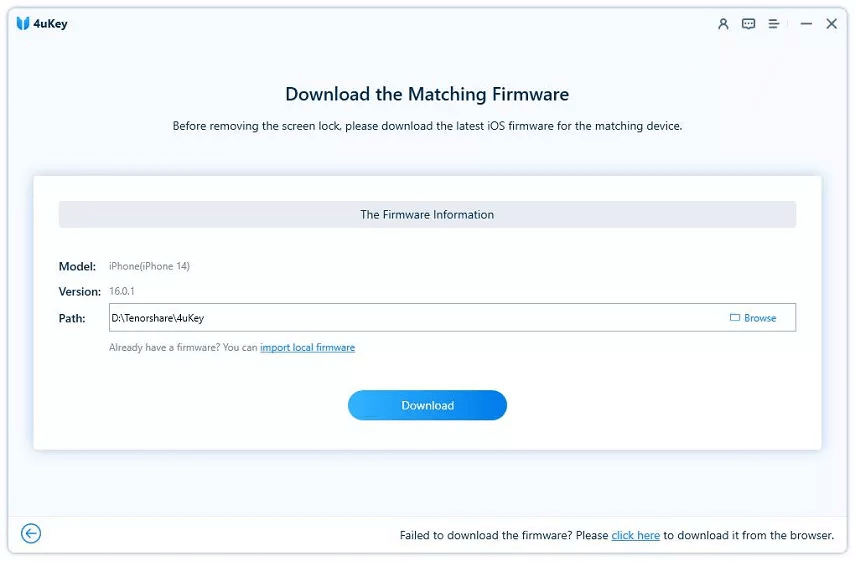
Kauj Ruam 4. Then hit the “Start Unlock” button to unlock the device. After that, the device will be restored to the latest version without a passcode.

Tsab ntawv no muaj txiaj ntsig li cas?
Nyem rau ntawm lub hnub qub kom ntsuas nws!
Qhov ntsuas nruab nrab / 5. Cov lej pov npav: